

AutoSprite Format ZIP
Download one folder per animation, including spritesheet.png, atlas.json, and numbered frame PNGs for GameMaker Sprite import.
Generate animated 2D sprite sheets for GameMaker from a prompt or character image. Export numbered PNG frames, then import Sprites faster.
GameMaker import
Frames folder to Sprite assets
Output fit
GameMaker can import animated Sprites cleanly when the frame files arrive in a format the Sprite Editor understands.
GameMaker needs
AutoSprite gives
Download one folder per animation, including spritesheet.png, atlas.json, and numbered frame PNGs for GameMaker Sprite import.
Use the frames folder to create a Sprite asset without asking GameMaker to slice a two-dimensional grid.
Keep frame dimensions, columns, and frame count beside the image export for reference or custom pipeline work.
Start from a prompt or single character image and keep the same identity across the Sprite assets you wire into an Object.
AutoSprite Format ZIP
Recommended
Folder per animation with spritesheet.png, atlas.json, and numbered frame PNGs.
Numbered frames folder
Sprite import
Multi-select frame PNGs in the Sprite Editor Import flow to create sub-images.
spritesheet.png
Pipeline reference
Useful for previewing the full grid, but not the easiest GameMaker import path.
_stripN PNG
Horizontal strip only
Works when frames are laid out left-to-right in one row, such as run_strip25.png.
Actual workflow
AutoSprite speeds up Sprite creation without replacing GameMaker's Object events or GML state logic.
Start from a character brief or existing concept art.
Download numbered frame PNGs from the AutoSprite Format ZIP.
Import the frames into spr_player_idle, spr_player_run, or another Sprite.
Swap sprite_index in Step or Animation End events.
Plan the character as Sprite assets that your Object can swap with sprite_index.
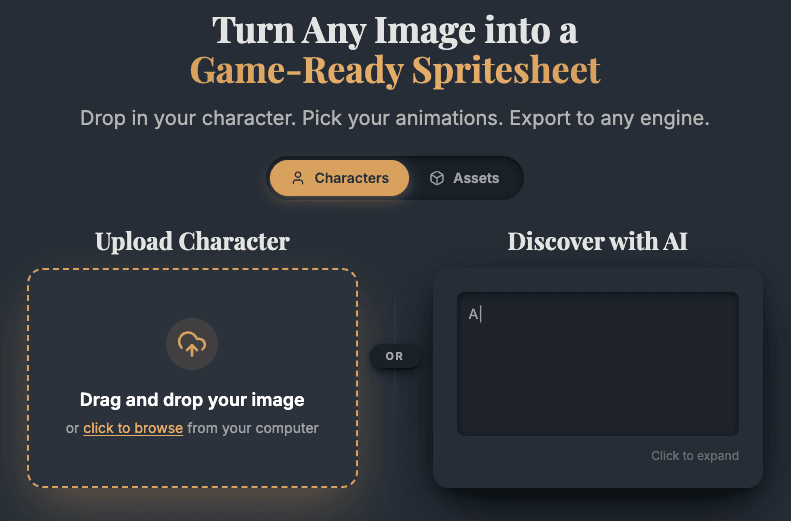
Pick animations that map cleanly to the Sprite resources your Object will switch between.
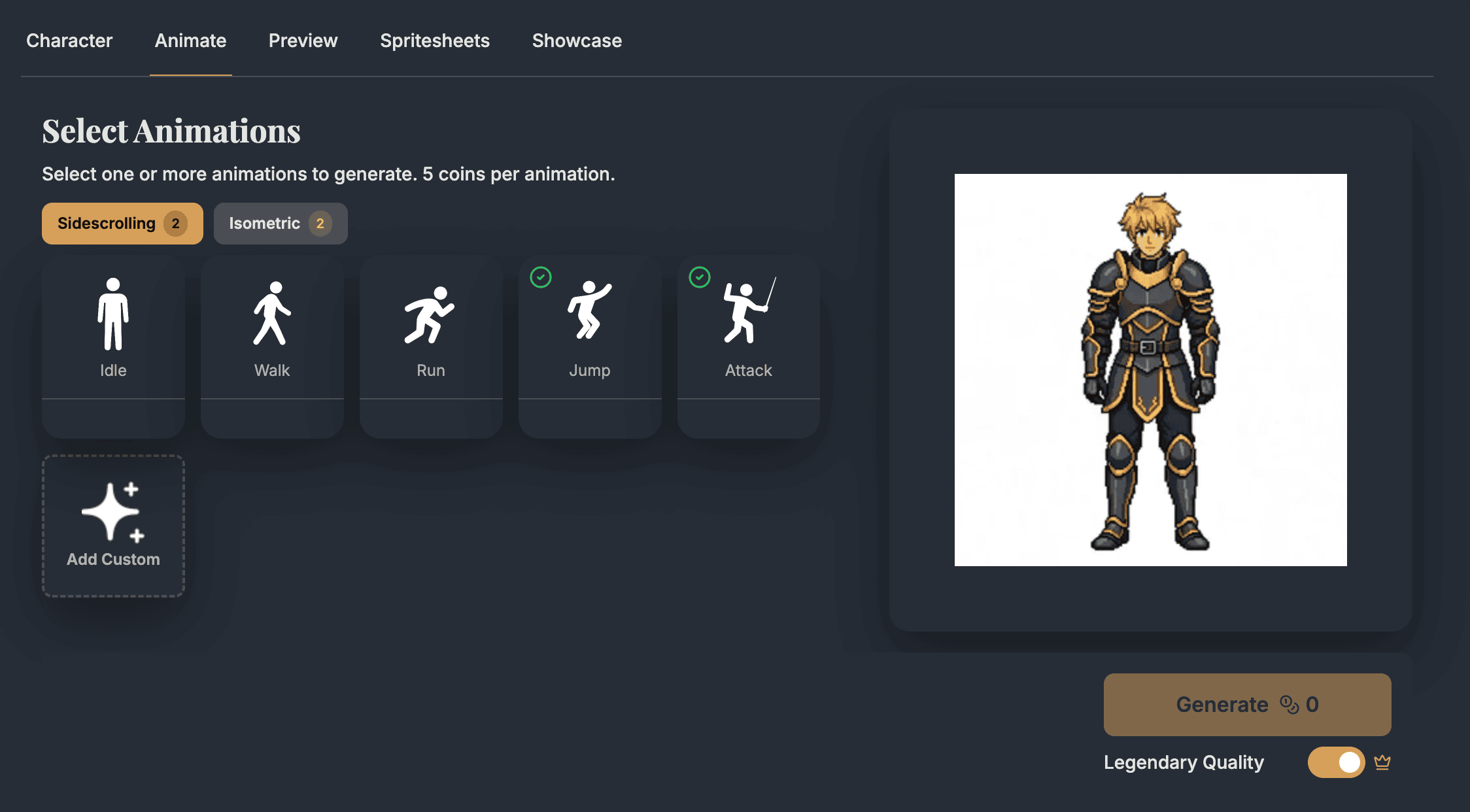
Check the movement before importing frames into the GameMaker Sprite Editor.
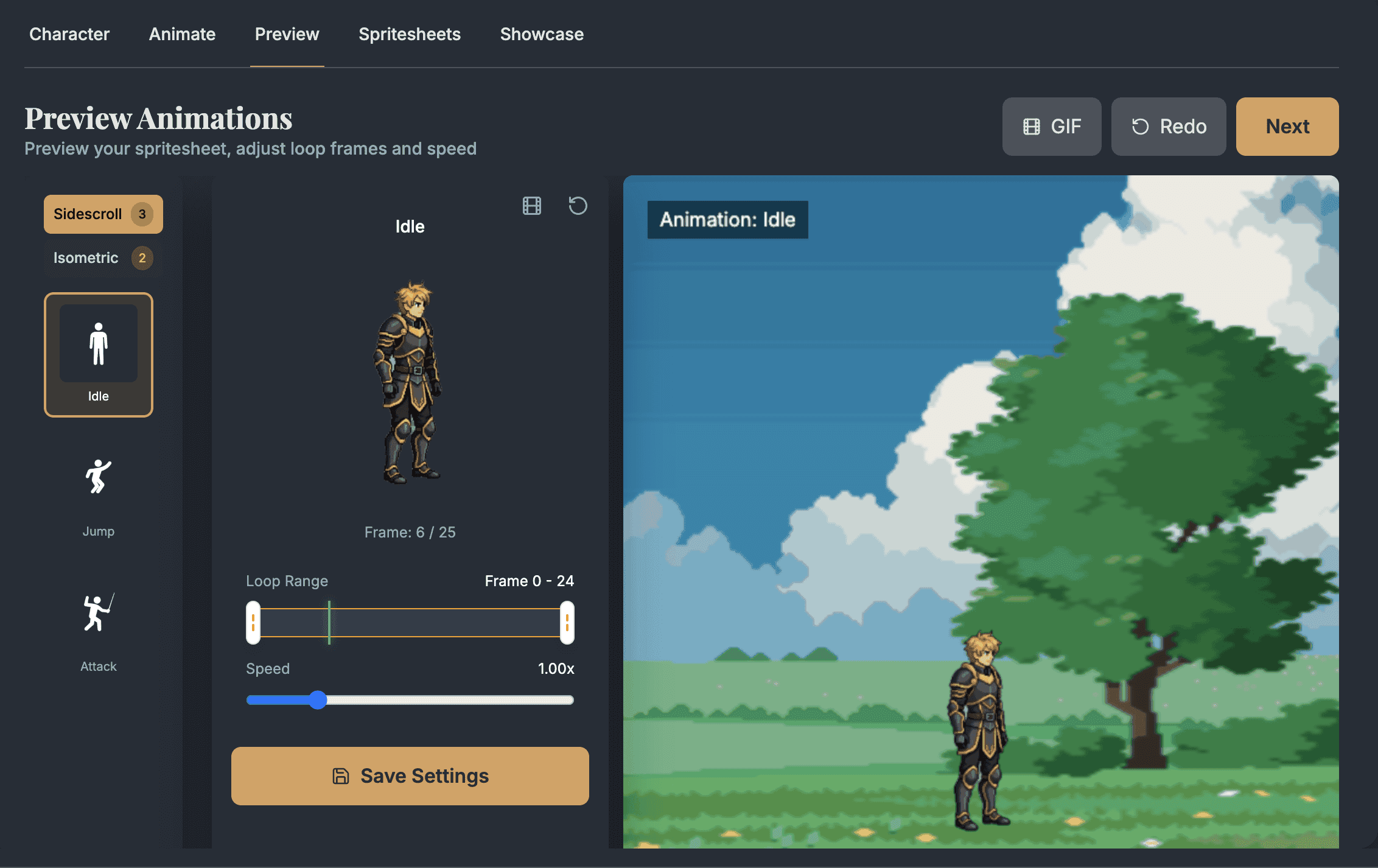
Use the AutoSprite Format ZIP for the cleanest GameMaker path: numbered frame PNGs into one Sprite per animation.
Import the numbered PNGs into a Sprite so GameMaker creates ordered sub-images.
GameMaker integration docsUse _stripN only for a horizontal strip, then let GameMaker divide the file into N frames.
Strip import notes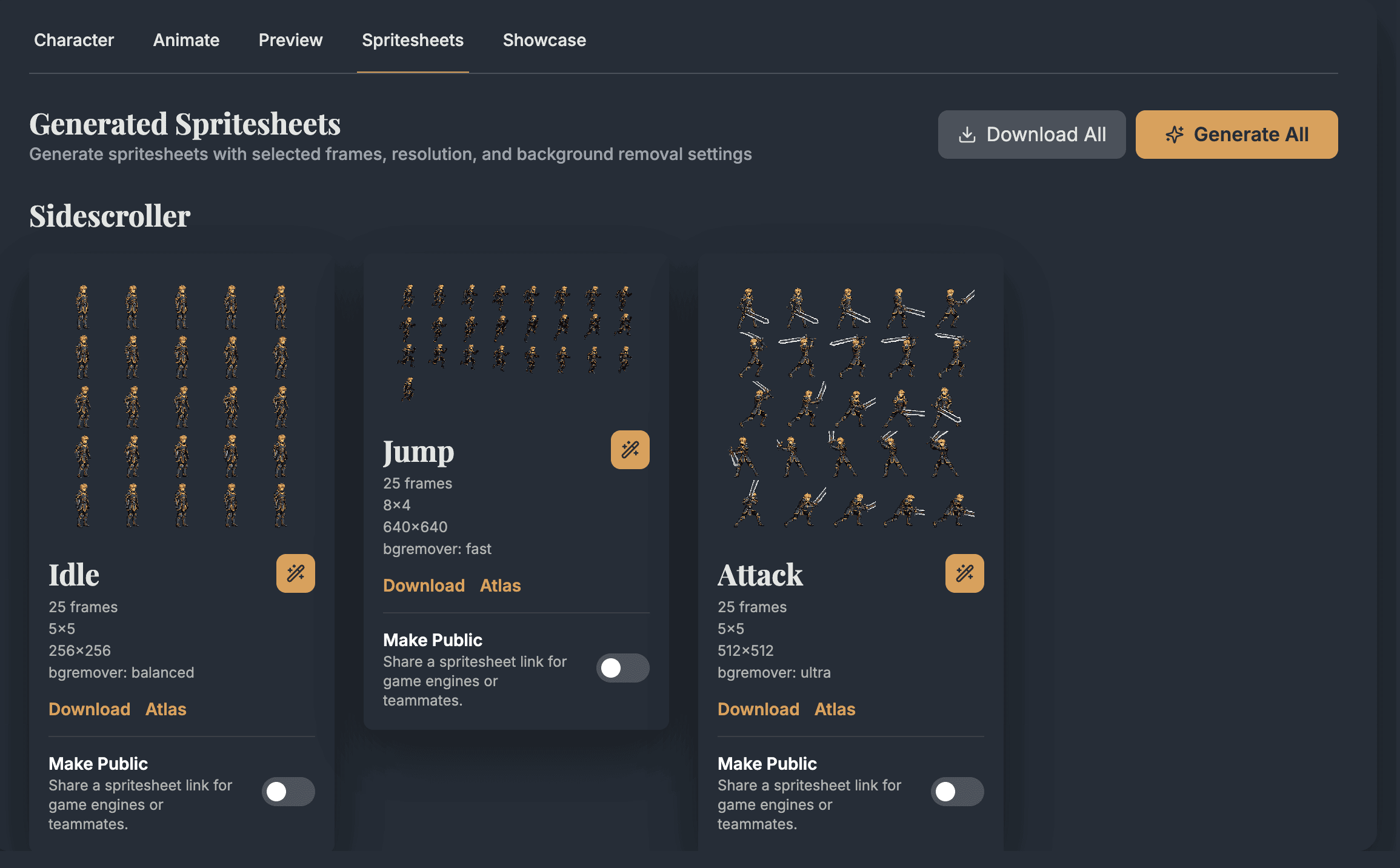
GameMaker import
A good GameMaker import keeps frame order, origin, playback, and object logic separate.
Recommended format
AutoSprite Format ZIP
Use the frames folder so each numbered PNG becomes a GameMaker sub-image.
Sprite asset
One per animation
Create spr_player_idle, spr_player_run, spr_player_attack, and other move-specific Sprites.
Origin
Middle Centre or Bottom Centre
Use Middle Centre for general character control or Bottom Centre when feet need to sit on the ground.
Playback
Frames per second
Start around 12 fps for idle/walk and raise run or attack if the motion needs more snap.
Pixel filtering
Interpolate off / gpu_set_texfilter(false)
Keep pixel art crisp by disabling texture filtering in platform options or at runtime.
Runtime control
sprite_index + image_speed
Use sprite_index to swap animations and image_speed as the instance multiplier.
Asset flow
GameMaker works best when each animation becomes a named Sprite, and your Object owns the runtime decision about which Sprite to play.
spr_player_idle
Idle
spr_player_run
Run
spr_player_attack
Attack
obj_player
Step eventsprite_index = spr_player_run
image_speed = 1
Animation End -> spr_player_idle
AutoSprite fills the Sprite assets. GameMaker keeps Object events, masks, and runtime state in charge.
Import guardrails
Most GameMaker sprite-sheet issues come from using the wrong import format or mixing Sprite playback with Object logic.
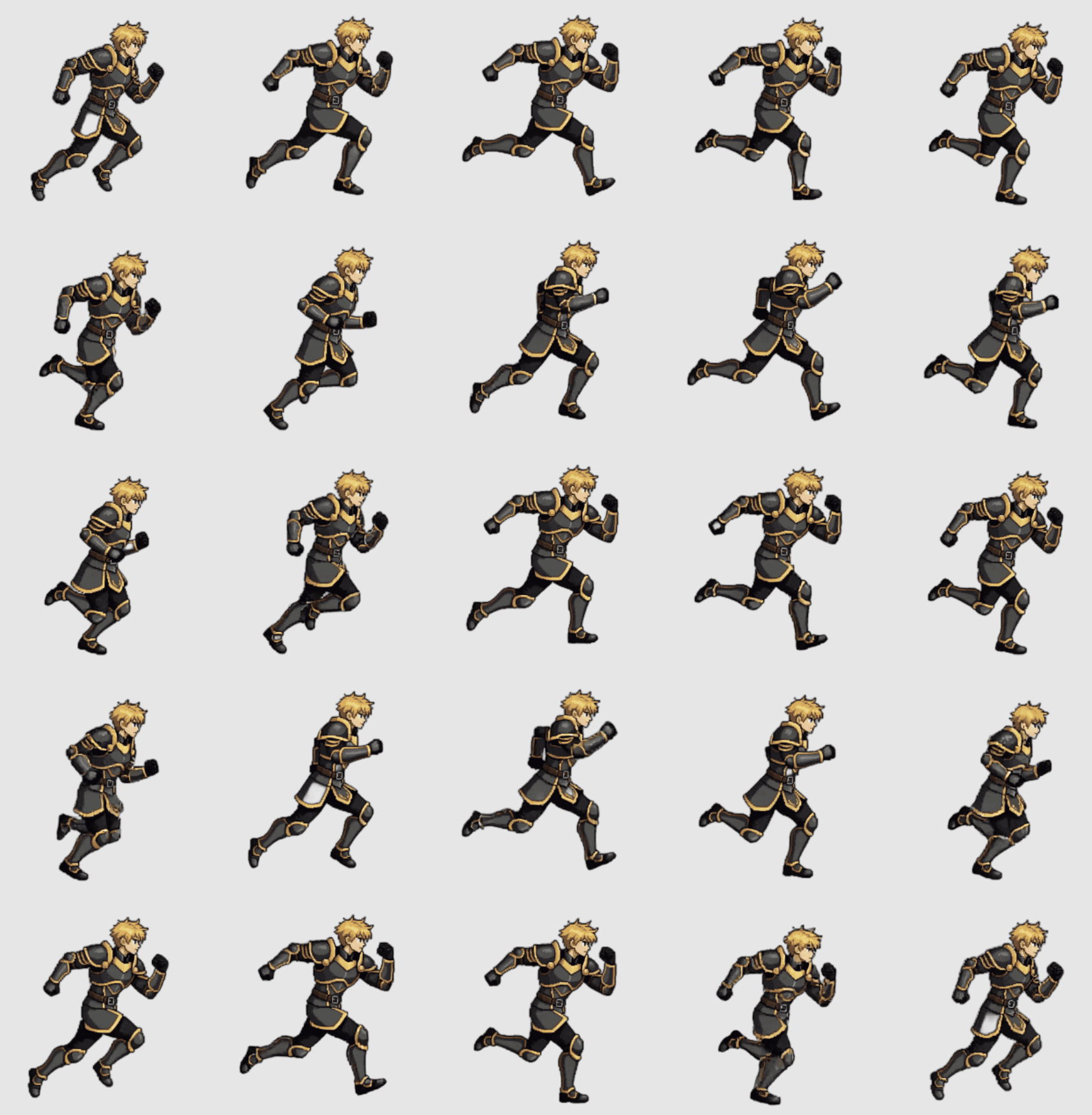
GameMaker treats the full spritesheet.png as one image. Use the numbered frames folder, slice it with Image > Convert to Frames, or import a true horizontal _stripN image.
The _stripN convention is for frames laid out horizontally from left to right. It is not the right path for a 5x5 grid.
AutoSprite zero-pads filenames so imports sort correctly, but it is worth verifying the sub-image order after a multi-select import.
Keep origins consistent across idle, run, attack, and hit Sprites so the character does not jump between states.
The Sprite asset has playback speed, and image_speed multiplies that speed per instance. Tune both deliberately.
Workflow decision
Use AutoSprite for animation coverage, then let GameMaker own Sprite resources, Object events, and GML behavior.
Use AutoSprite when
Use this workflow when movement, attack timing, enemy behavior, or room readability is blocked by missing Sprite frames.
Use the frames folder when
Numbered frame PNGs avoid the common mistake of trying to make GameMaker slice a two-dimensional sheet as a strip.
Use _stripN when
A file like run_strip25.png is a good fit only when all frames sit in one row from left to right.
Use Sequences when
Keep simple state swaps in Object events, but consider Sequences for broadcast messages, moments, re-timing, or layered presentation.
Pipeline fit
Use generated idle, run, jump, and attack Sprites while you tune input, collision masks, enemy behavior, and room scale.
AutoSprite supplies frame art. GameMaker still owns Objects, events, variables, collision masks, rooms, layers, and draw behavior.
The frames folder is best for default AutoSprite exports. _stripN is only for true horizontal strips where GameMaker can divide by N frames.
Most character state swaps belong in Object events. Sequences are useful when the timeline needs messages, moments, or authored presentation.
GML handoff
After importing AutoSprite frames into Sprite assets, your Object can swap animations with sprite_index and return one-shot moves in Animation End.
// Create Event
move_speed = 4;
sprite_index = spr_player_idle;
image_speed = 1;

// Step Event
var _move = keyboard_check(vk_right) - keyboard_check(vk_left);

if (keyboard_check_pressed(vk_space) && sprite_index != spr_player_attack) {
    sprite_index = spr_player_attack;
    image_index = 0;
}

if (sprite_index == spr_player_attack) {
    exit;
}

x += _move * move_speed;

if (_move != 0) {
    sprite_index = spr_player_run;
    image_xscale = sign(_move);
} else {
    sprite_index = spr_player_idle;
}

// Animation End Event
if (sprite_index == spr_player_attack) {
    sprite_index = spr_player_idle;
    image_index = 0;
}
GameMaker use cases
AutoSprite helps most when missing Sprite assets are blocking Object behavior, room testing, or animation timing.
Create enough idle, run, jump, and attack motion to test keyboard input, room scale, camera position, and collision feel.
Generate readable frame sets for combat enemies, town characters, bosses, pickups, and early placeholders that need more than one pose.
Export the moves your Step event and Animation End event expect, then switch them with sprite_index while gameplay stays in GameMaker.
FAQ
These are the practical questions developers usually ask before they try the workflow in a real GameMaker project.
Yes. AutoSprite exports PNG sprite sheets, JSON atlas data, and an AutoSprite Format ZIP with numbered frame PNGs. For GameMaker, the frames folder is usually the cleanest import path because each PNG becomes a Sprite sub-image.
Use AutoSprite Format ZIP when you want the recommended GameMaker workflow. Each animation folder includes spritesheet.png, atlas.json, and numbered frame PNGs so you can import the frames into a Sprite asset.
Use the frames folder for the default AutoSprite grid. Importing spritesheet.png directly makes GameMaker treat the 5x5 sheet as one image unless you slice it with Image > Convert to Frames in the Sprite Editor. A _stripN file is useful only for a single horizontal strip.
Create one Sprite per animation, then assign sprite_index in Object events. Use image_speed as the per-instance animation speed multiplier, image_xscale for left/right mirroring, and the Animation End event for one-shot moves like attack.
Set a consistent Origin, usually Middle Centre or Bottom Centre, confirm the sub-image order, set Sprite playback speed, and disable texture filtering for crisp pixel art through platform graphics options or gpu_set_texfilter(false).
Use normal Sprite assets and Object events for most character state swaps. Use Sequences when you need timeline control, moments, broadcast messages, or a more authored presentation layer.
Start with a prompt or character image, choose the GameMaker animation moves you need, and export frame PNGs when the motion is ready to test.
AutoSprite is not sponsored by or affiliated with YoYo Games. GameMaker is a trademark of YoYo Games Ltd.