
Transparent PNG sheets
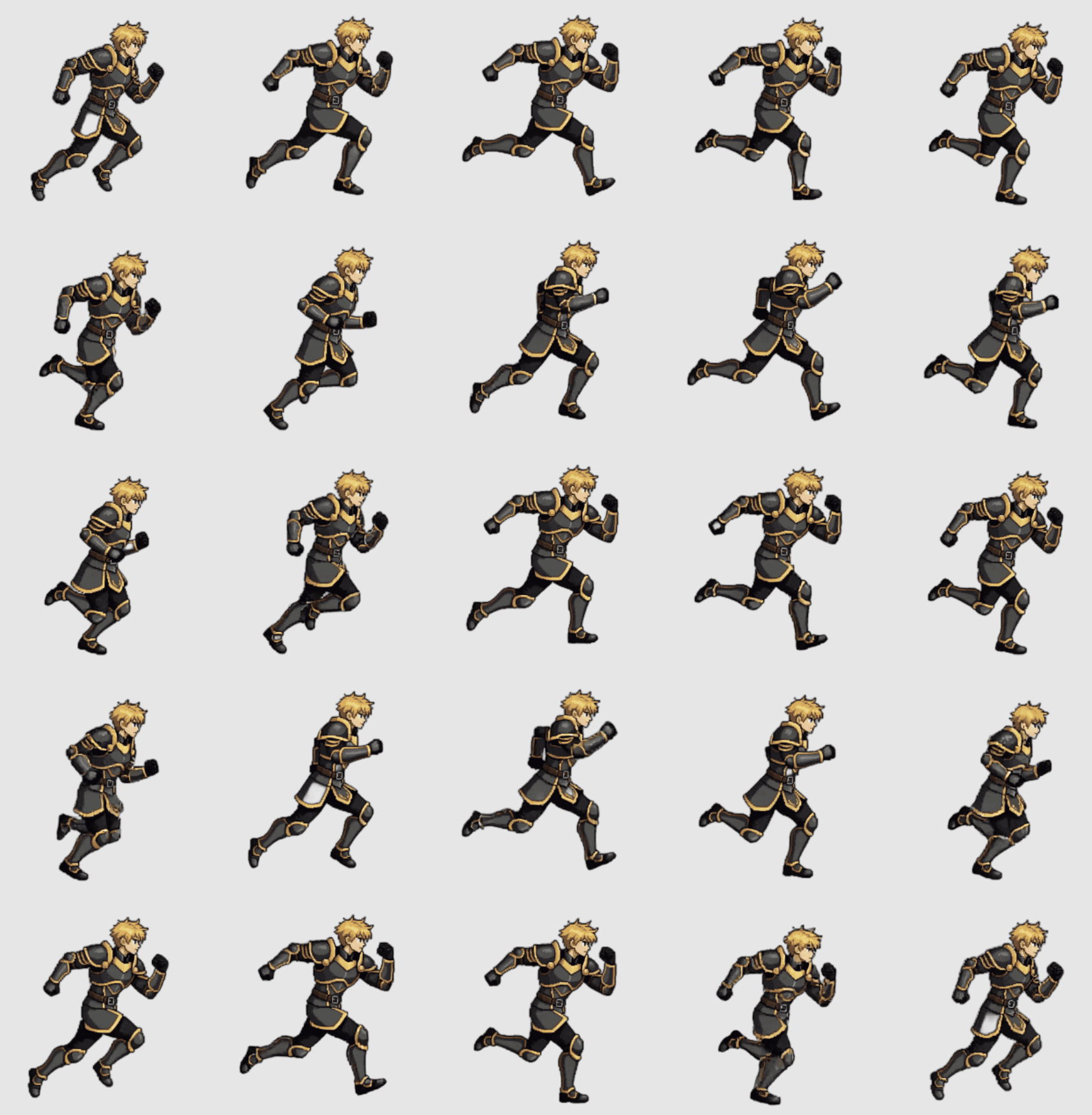
Export a clean sprite sheet for each character move, with alpha, frame spacing, and a grid Godot can bring into SpriteFrames.
Generate animated 2D sprite sheets for Godot from a prompt or character image. Export PNG + JSON, then build SpriteFrames faster.
Godot import
PNG + JSON to SpriteFrames
Output fit
Godot can animate many texture setups. A useful character sheet needs clean frames, readable moves, and metadata you can trust.
Godot needs
AutoSprite gives
Export a clean sprite sheet for each character move, with alpha, frame spacing, and a grid Godot can bring into SpriteFrames.
Use the atlas beside the PNG to confirm frame dimensions, columns, frame count, and naming context before import.
Generate idle, walk, run, attack, jump, hit, or custom actions as separate sheet outputs you can add to SpriteFrames animations.
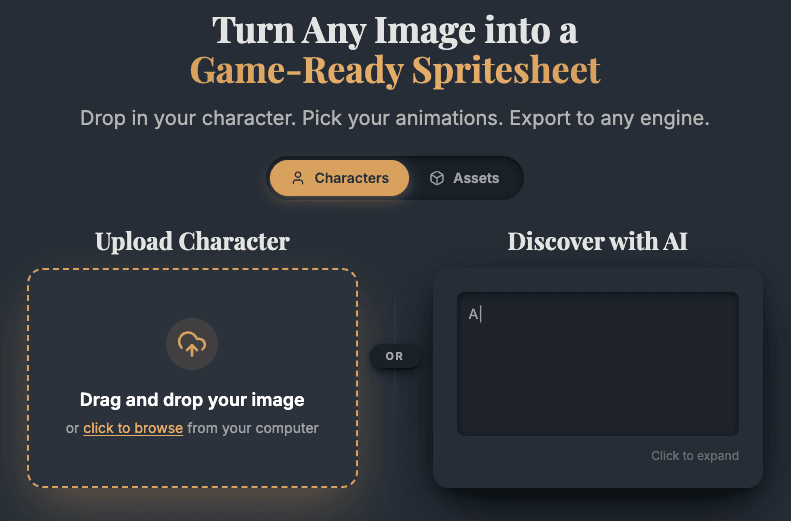
Start from a prompt or single character image and keep the same identity across the movement set you plan to wire in Godot.
PNG sprite sheet
Visual frame sheet
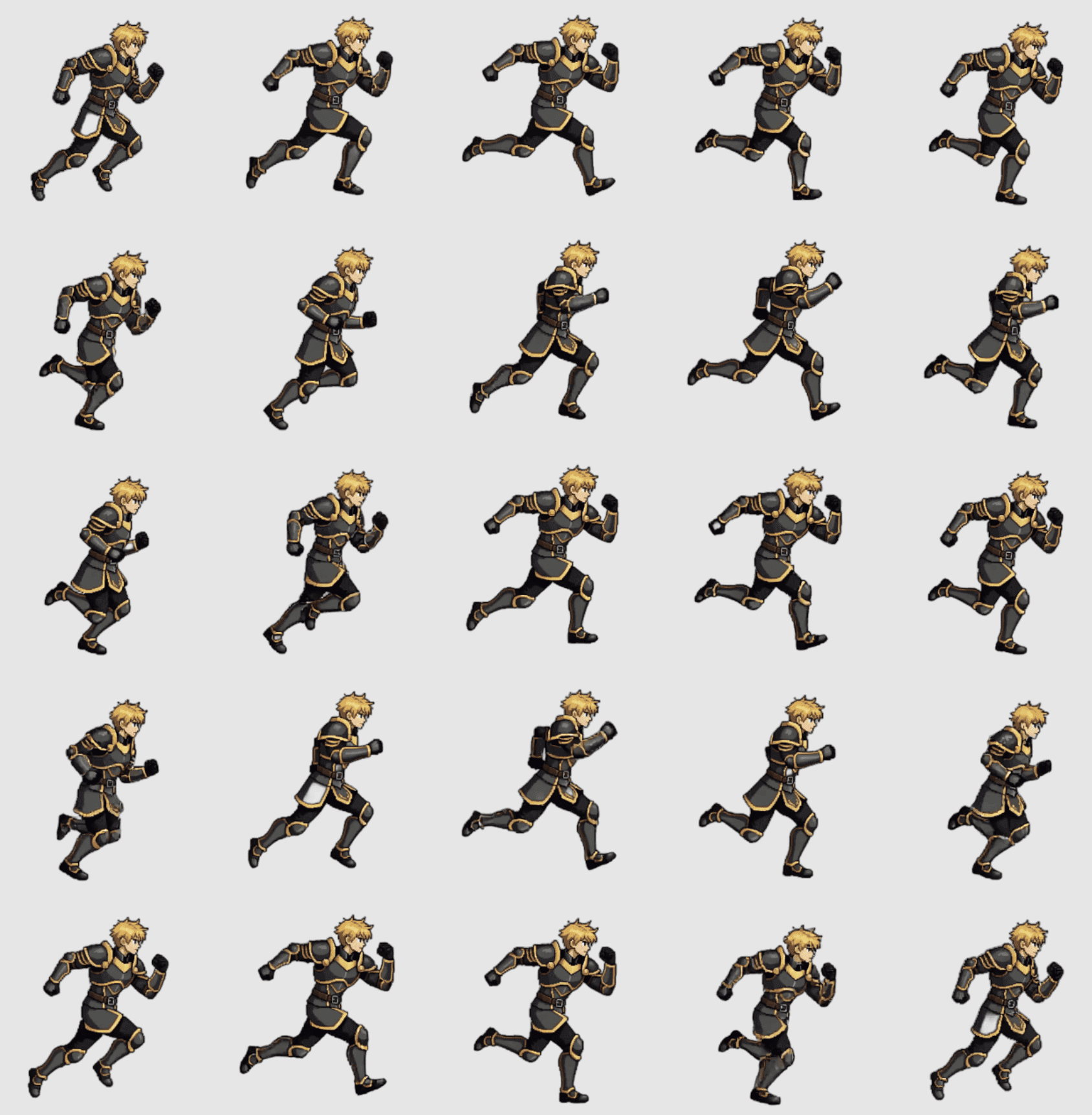
Add frames from sprite sheet in the SpriteFrames editor.
JSON atlas data
Frame dimensions
Confirm columns, frame count, and frame size before selecting grid frames.
Download bundle
Sheet + atlas files
Move multiple completed sheets into res://assets/characters/ together.
Actual workflow
AutoSprite speeds up the art handoff without replacing your Godot scene workflow.
Start from a character brief or existing concept art.
Generate consistent frames for the moves you selected in AutoSprite.
Add sheet frames into named Godot animations.
Play idle, walk, run, attack, or custom states from your character script.
Give AutoSprite the same character constraints your Godot scene will need.
Pick moves that map cleanly to the SpriteFrames animations in your Godot scene.
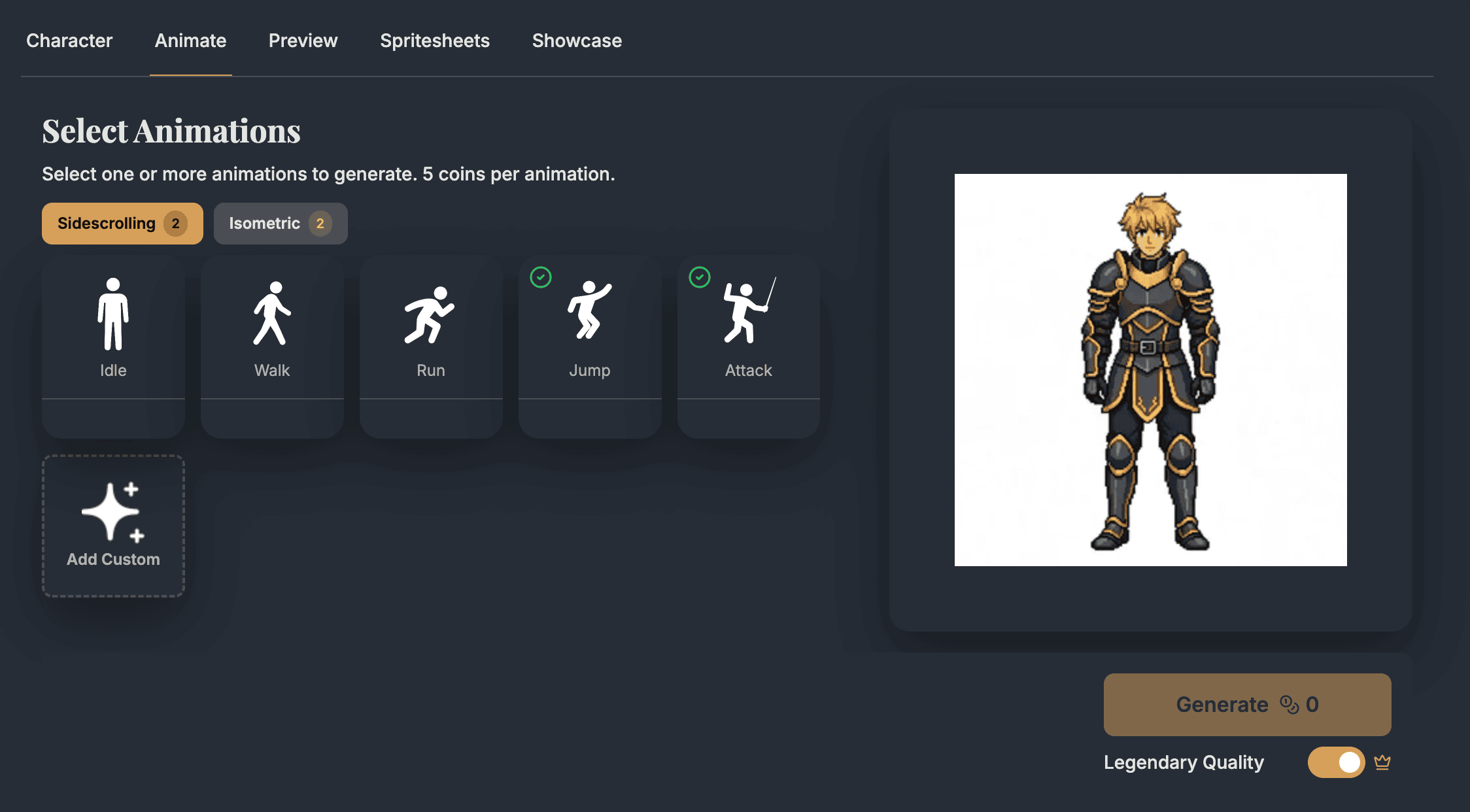
Check the motion before the sheet lands in your Godot project folder.
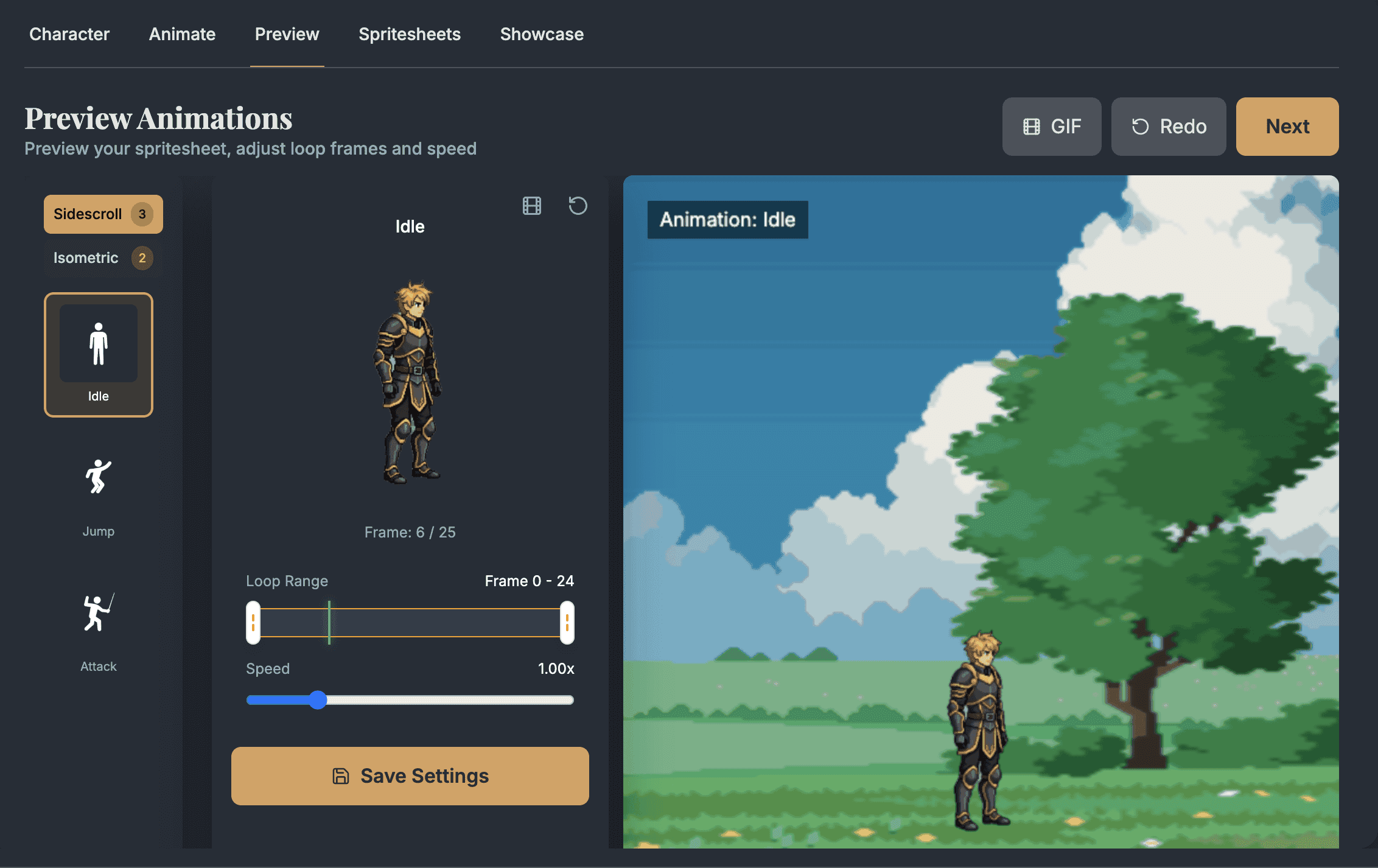
Download the PNG sheet and JSON atlas, then choose the Godot import path that fits the scene.
Add an AnimatedSprite2D node, create SpriteFrames, then add frames from each AutoSprite sheet.
Godot integration docsUse a Sprite2D with Hframes/Vframes set to the sheet grid and keyframe the Frame property when you need timeline control or animation events.
Alternative setup guide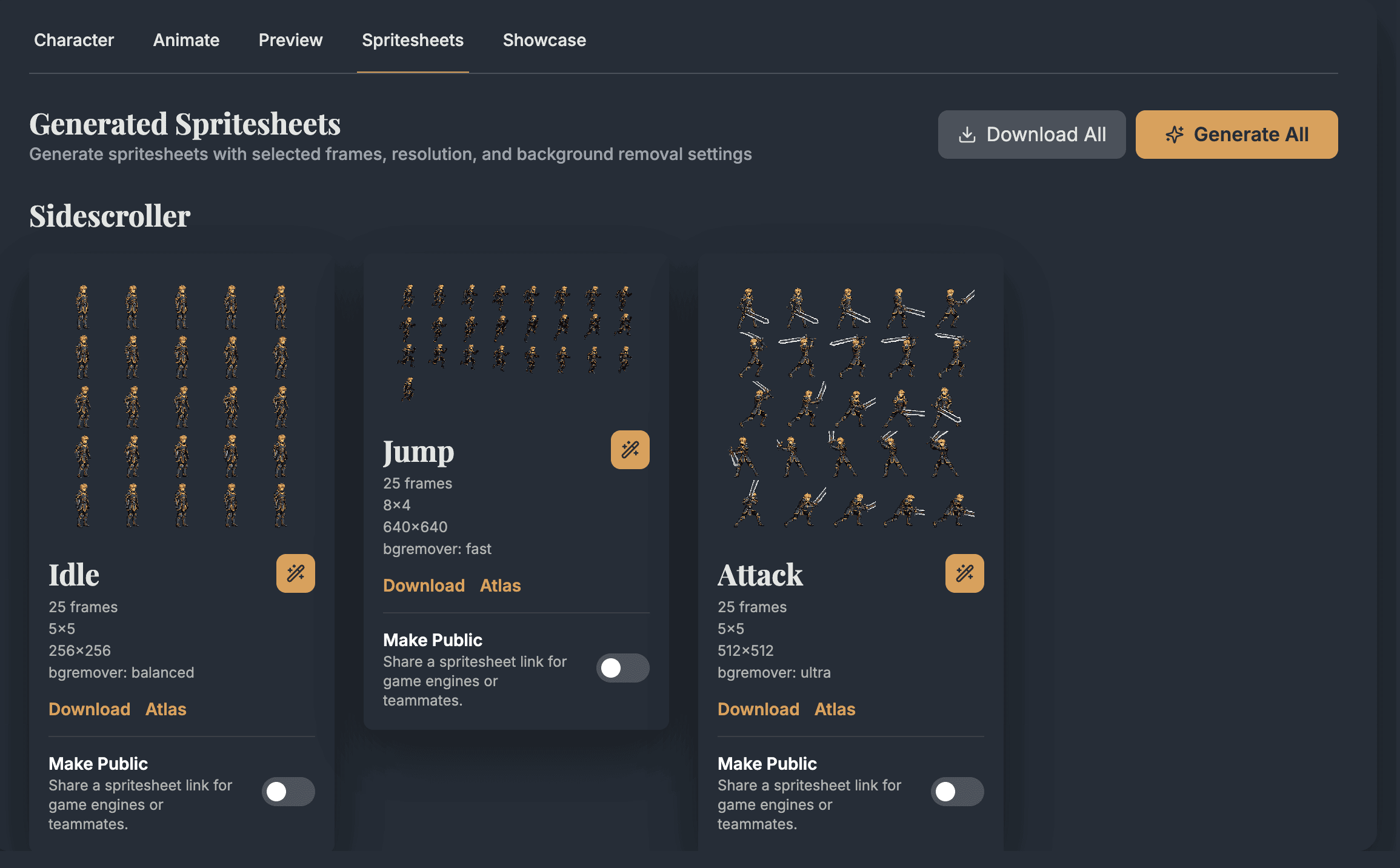
Godot import
A clean export still needs consistent Godot texture setup and SpriteFrames naming.
Node
AnimatedSprite2D
Use this for most frame-based character animations in Godot 4.x.
Resource
SpriteFrames
Create animations like idle, walk, run, jump, and attack from imported sheet frames.
Grid setup
H/V frames from atlas
Use AutoSprite frame size, columns, and frame count so you do not count the grid by eye.
Texture filter
Nearest for pixel art, Linear for painted art
Set this on the CanvasItem or project default in Godot 4 to keep pixel art crisp or smooth higher-resolution illustrations.
Mipmaps
Usually off for 2D pixel art
Avoid mipmap smoothing on small pixel sprites unless your project deliberately needs scaled-distance filtering.
Texture repeat
Disabled or inherited
Keep repeat disabled through CanvasItem or project defaults so character frames do not tile unexpectedly.
Scene tree fit
A Godot sprite sheet workflow is strongest when the export has a clear scene role: movement at the root, visual playback in AnimatedSprite2D, and stable collision beside changing frames.
res://characters/player.tscn
CharacterBody2D
Owns velocity, movement code, and move_and_slide() physics.
AnimatedSprite2D
Plays SpriteFrames animations named idle, walk, run, attack, or custom moves.
SpriteFrames resource
idle · walk · run · attack
CollisionShape2D
Keeps collision shape separate from changing animation frames.
Import guardrails
Most Godot sprite-sheet issues come from naming, grid, or texture setup mismatches.
Use the atlas frame size, columns, and frame count instead of dragging a rough selection in SpriteFrames.
Set the CanvasItem or project texture filter to Nearest and avoid mipmap smoothing when sprites should keep crisp pixel edges.
Keep SpriteFrames names like idle, walk, run, and attack aligned with the strings your GDScript calls.
Loop idle, walk, and run, but turn looping off for one-shot actions like attack, hit, or interact — new SpriteFrames animations loop by default.
For top-down characters, keep direction names explicit so walk_down and walk_right do not get confused in code.
Workflow decision
Use AutoSprite for scene testing, then let Godot own nodes, resources, and scripts.
Use AutoSprite when
Use this workflow when movement, combat timing, camera feel, or enemy readability is blocked by missing character animation.
Use AnimatedSprite2D when
SpriteFrames is the fastest fit for idle, walk, run, jump, attack, and hit states that your GDScript can play by name.
Use AnimationPlayer when
Choose Sprite2D plus AnimationPlayer when the timeline needs events, property keyframes, paired hitboxes, or scripted timing hooks.
Keep in Godot when
AutoSprite supplies art frames. Godot should still own collision shapes, input maps, signals, state machines, and runtime behavior.
Pipeline fit
Use generated idle, walk, run, jump, and attack loops while you tune movement, collision timing, input feel, and enemy behavior.
AutoSprite supplies frames. Godot still owns physics, collisions, signals, scene composition, input maps, animation calls, and runtime optimization.
AnimatedSprite2D is fast for straightforward loops. AnimationPlayer is better when you need property keyframes or gameplay events on the timeline.
Once the sprites are under res://, you can keep your existing folders, scene inheritance, scripts, import presets, and source-control process.
GDScript handoff
After you add AutoSprite frames to a SpriteFrames resource, your CharacterBody2D can switch animations by name.
extends CharacterBody2D

@onready var animated_sprite: AnimatedSprite2D = $AnimatedSprite2D

const SPEED := 200.0
const JUMP_VELOCITY := -420.0

var gravity: float = ProjectSettings.get_setting("physics/2d/default_gravity")
var is_attacking := false

# "jump", "move_left", "move_right", and "run" are custom actions —
# add them in Project Settings > Input Map.
func _physics_process(delta: float) -> void:
    if not is_on_floor():
        velocity.y += gravity * delta

    if Input.is_action_just_pressed("jump") and is_on_floor():
        velocity.y = JUMP_VELOCITY
        if not is_attacking:
            animated_sprite.play("jump")

    var direction := Input.get_axis("move_left", "move_right")

    if direction != 0.0:
        velocity.x = direction * SPEED
        animated_sprite.flip_h = direction < 0.0

        if is_on_floor() and not is_attacking:
            if Input.is_action_pressed("run"):
                animated_sprite.play("run")
            else:
                animated_sprite.play("walk")
    else:
        velocity.x = move_toward(velocity.x, 0.0, SPEED)

        if is_on_floor() and not is_attacking:
            animated_sprite.play("idle")

    move_and_slide()

func attack() -> void:
    if is_attacking:
        return
    is_attacking = true
    animated_sprite.play("attack")
    # Turn looping off for "attack" in SpriteFrames,
    # or animation_finished never fires.
    await animated_sprite.animation_finished
    is_attacking = false
    animated_sprite.play("idle")
SpriteFrames setup
Godot use cases
AutoSprite helps most when missing character motion is blocking scene testing.
Create enough idle, walk, run, jump, and attack motion to test controller feel, hitboxes, camera behavior, and scene pacing.
Generate readable side-view or top-down characters for combat waves, quest scenes, towns, bosses, and early graybox replacements.
Export the exact moves your AnimatedSprite2D node needs so scripts can call real animation names during playtesting.
FAQ
These are the practical questions developers usually ask before they try the workflow in a real Godot project.
Yes. AutoSprite exports transparent PNG sprite sheets and JSON atlas data that work with Godot 4.x. Import the PNG into your project, create an AnimatedSprite2D node, add a SpriteFrames resource, then add frames from the sheet.
For a normal Godot workflow, export the PNG sprite sheet and the JSON atlas. The PNG becomes the texture used by SpriteFrames, while the JSON helps you confirm frame dimensions, columns, and frame count.
In the manual SpriteFrames workflow, you usually select frames from the PNG sheet yourself. Treat the JSON atlas as the reference for frame size, columns, frame count, and coordinates so your grid setup matches the AutoSprite export.
Use AnimatedSprite2D with SpriteFrames for straightforward frame-based character loops. Use Sprite2D plus AnimationPlayer when you need keyframed properties, custom events, or more control over animation timelines.
For pixel art, set the CanvasItem or project texture filter to Nearest, avoid mipmap smoothing, and keep texture repeat disabled or inherited from a disabled project default. For smoother painted art, Linear filtering can look better. The SpriteFrames grid should match the atlas frame dimensions.
AutoSprite is built for game production workflows, including commercial prototypes and shipped Godot projects. Check your plan terms for usage limits, team needs, and export volume before moving a large character set into production.
Yes. AutoSprite can generate side-scroller and isometric-style movement sets. For top-down Godot projects, keep animation names directional, such as walk_down, walk_right, idle_down, and idle_right, so GDScript stays clear.
Start with a prompt or character image, choose the Godot animation loops you need, and export the PNG sheet when the motion is ready to test.
AutoSprite is not sponsored by or affiliated with the Godot Foundation. Godot is a trademark of the Godot Foundation.