

Uniform PNG sheets
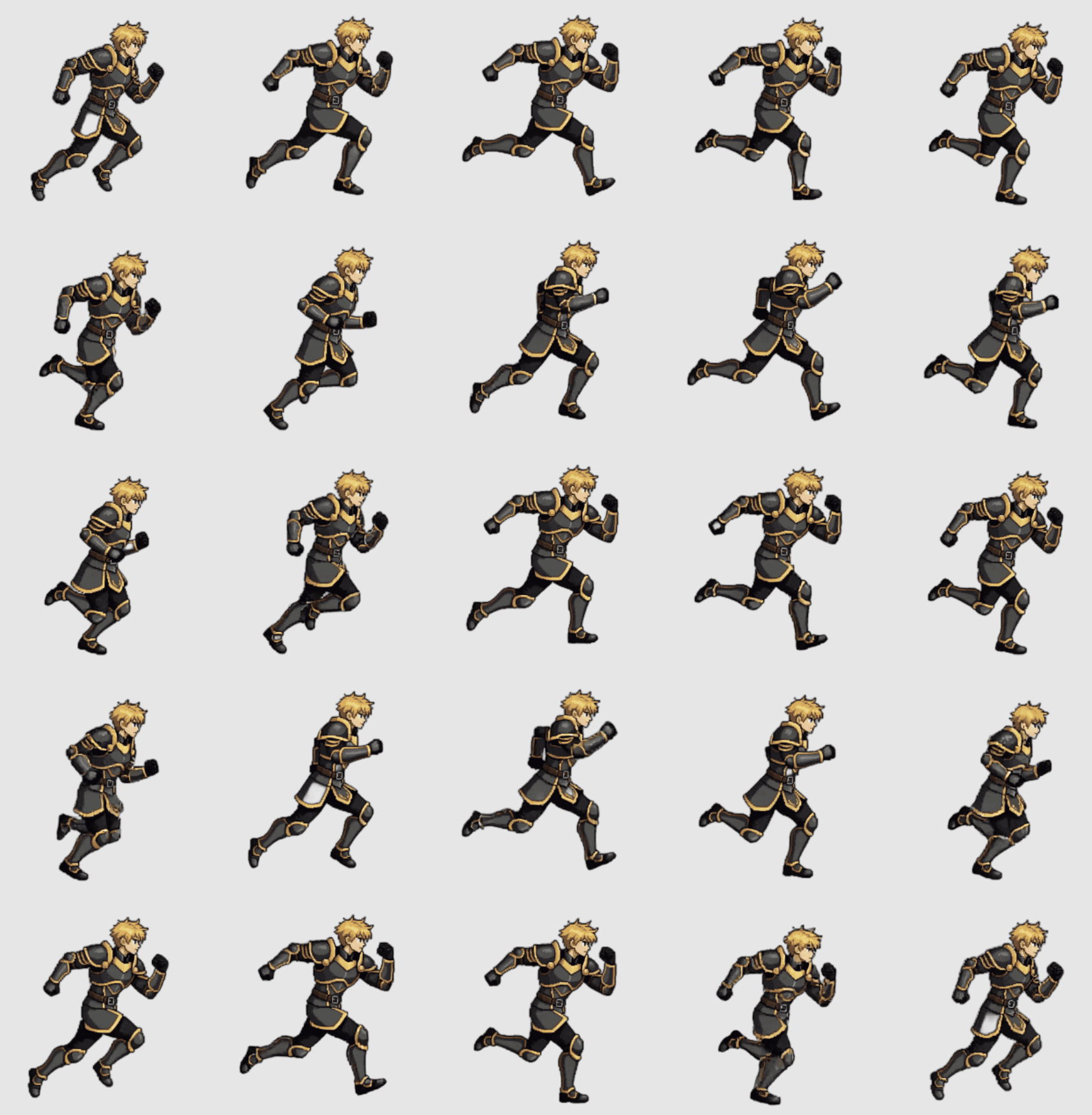
Export a spritesheet for each character move so Phaser can slice it with load.spritesheet and a frame config.
Generate animated 2D sprite sheets for Phaser. Export PNG sheets and JSON frame data, then load texture keys faster.
Phaser loader
PNG grid to animation keys
Output fit
Phaser can load character animation quickly when every sheet has predictable frame dimensions and a stable texture key.
Phaser needs
AutoSprite gives
Export a spritesheet for each character move so Phaser can slice it with load.spritesheet and a frame config.
Use frameWidth, frameHeight, columns, and frame count from AutoSprite's JSON metadata instead of counting cells by eye.
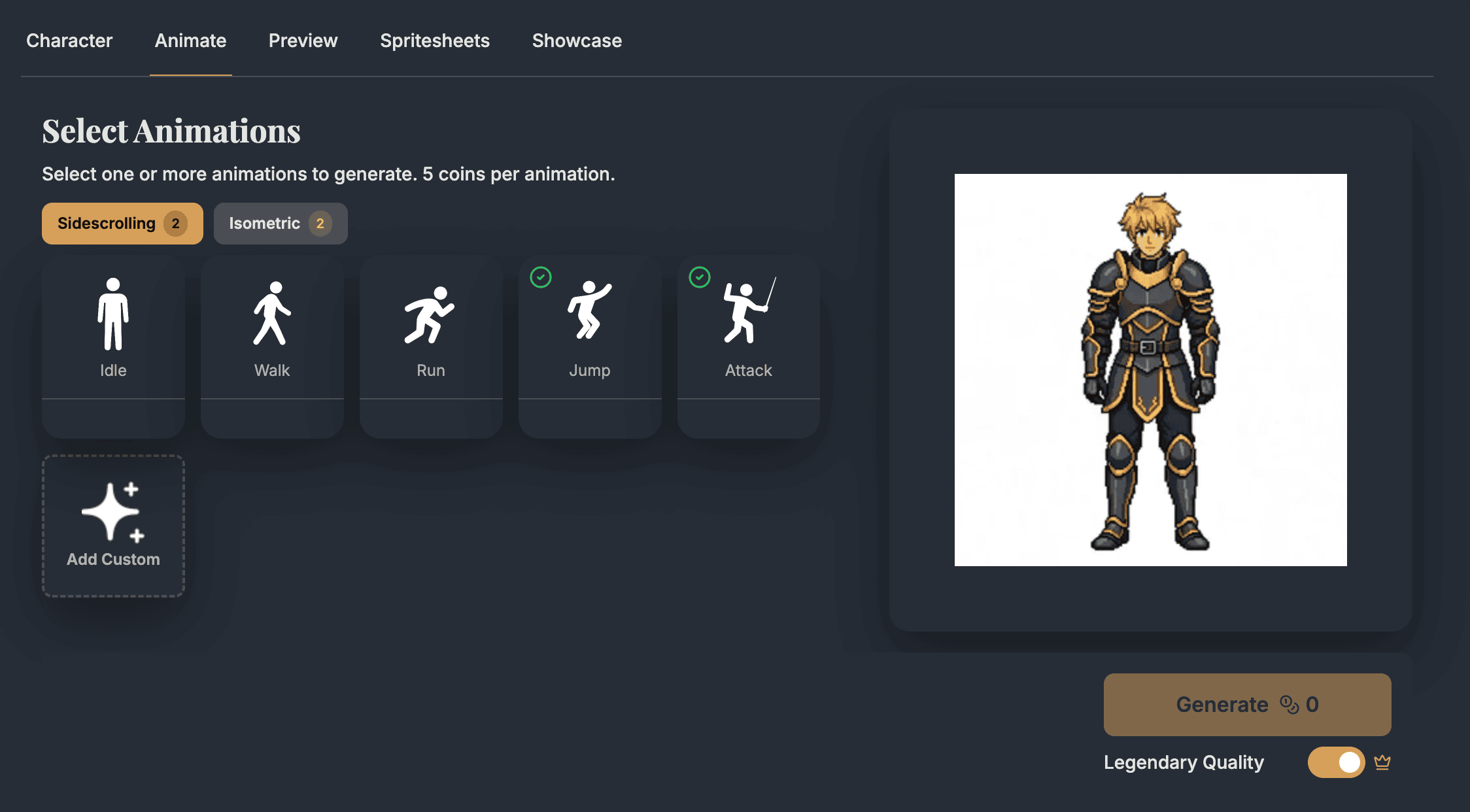
Keep idle, run, jump, attack, hit, or custom actions as separate texture keys you can wire into Phaser animations.
Start from a prompt or single character image and keep identity stable across the web-game states you plan to play.
PNG spritesheet
load.spritesheet
Best fit when every frame uses the same width and height in a uniform grid.
JSON frame data
Frame reference
Use it to confirm frameWidth, frameHeight, columns, and the number of frames.
Multiple sheets
Separate texture keys
Load idle, run, jump, and attack with separate keys for straightforward animation setup.
Packed atlas
load.atlas
Use after packing frames with a Phaser-compatible atlas tool, not for raw AutoSprite grid sheets.
Actual workflow
AutoSprite supplies frame art while Phaser keeps ownership of the Scene lifecycle, loader, animations, and gameplay code.
Start from a character brief or existing concept art.
Download one uniform spritesheet per move from AutoSprite.
Register texture keys with load.spritesheet and frame dimensions.
Create animations, then play them from input or Arcade Physics state.
Plan the character as texture keys, animation keys, and state changes your Scene can own.
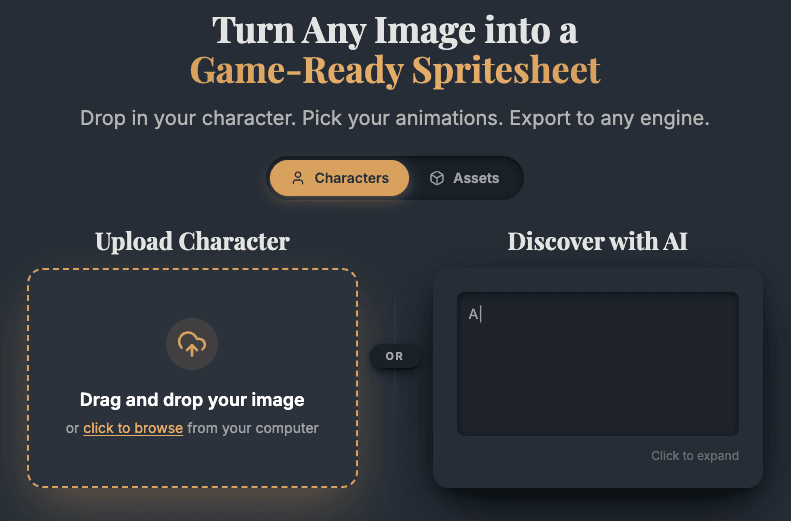
Pick moves that map cleanly to Phaser animation keys and Scene update logic.
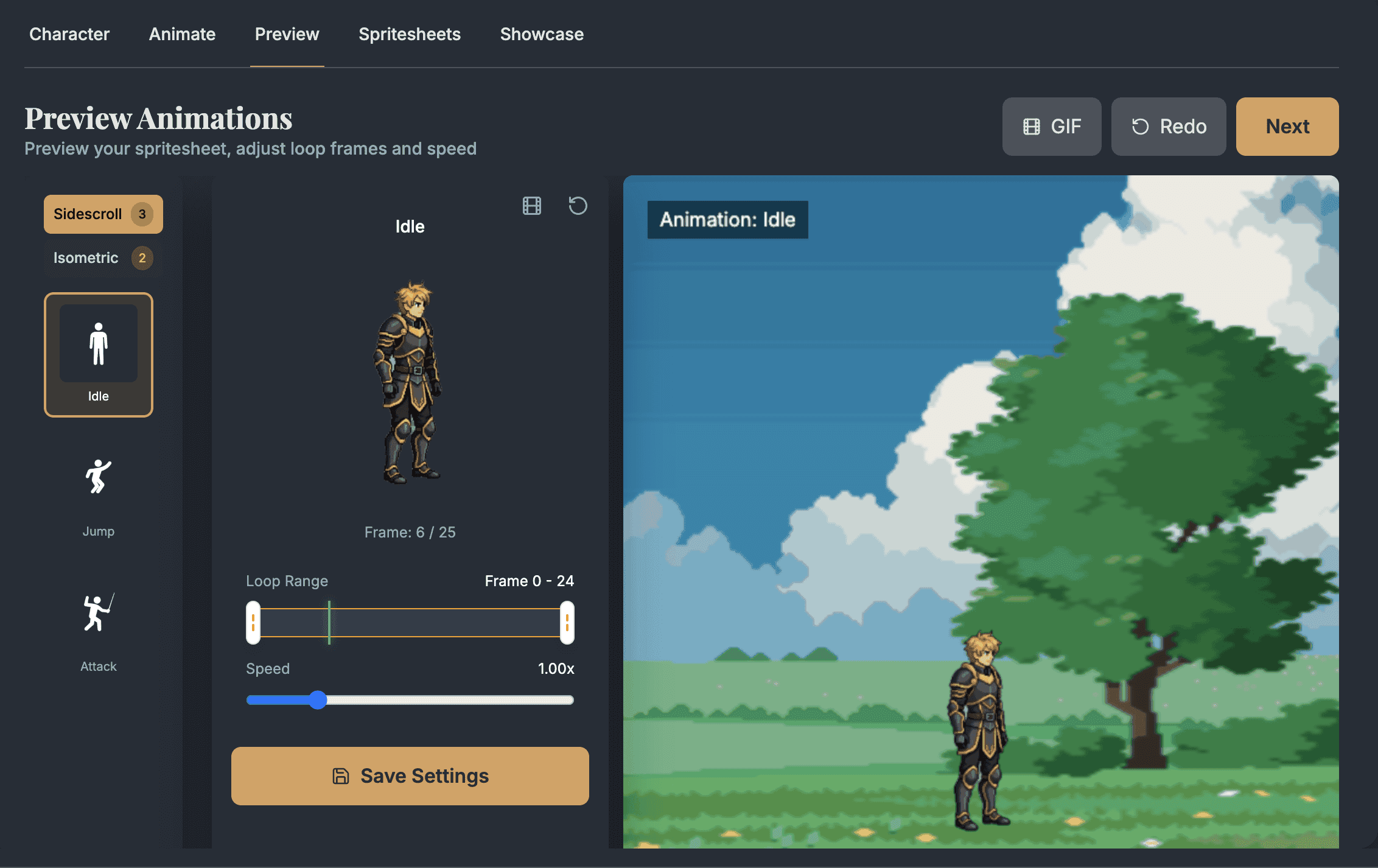
Preview the animation before the PNG lands in your public assets folder.
Copy the PNGs into your assets path, load them in preload(), then create animation keys in create().
Load each uniform PNG with a texture key and the frame size from AutoSprite JSON.
Phaser integration docsUse load.atlas only after packing frames into Phaser-compatible named atlas data.
Atlas import notes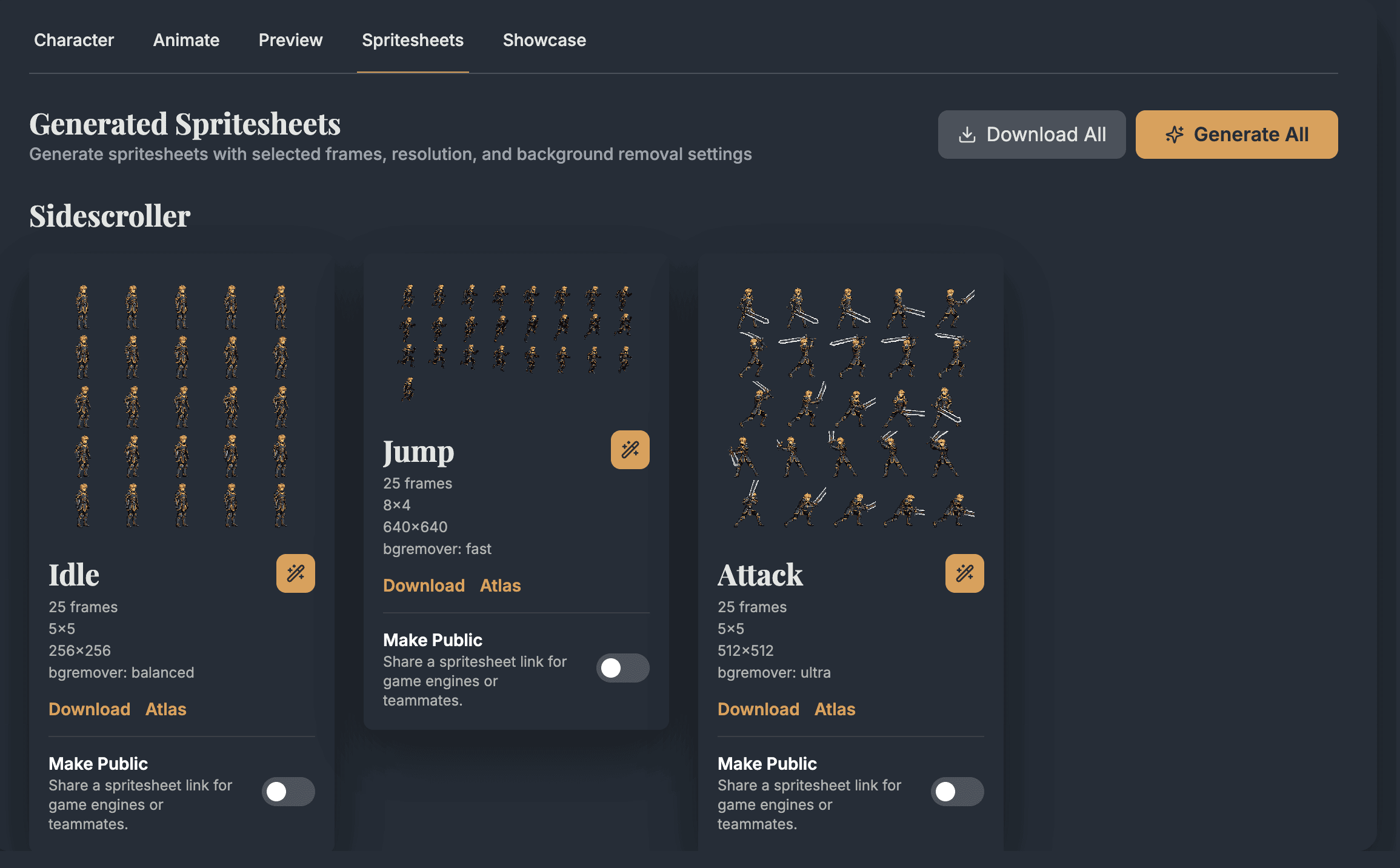
Phaser loading
A good Phaser import keeps file paths, texture keys, frame sizes, and animation keys easy to inspect.
Asset path
public/assets or loader path
Place exported PNG and JSON files where your Phaser Loader can resolve them.
Loader call
this.load.spritesheet()
Use a texture key, image URL, and frameConfig object for uniform spritesheets.
Frame config
frameWidth + frameHeight
Read these values from AutoSprite's JSON metadata so slicing matches the exported cells.
Animation frames
generateFrameNumbers()
Use spritesheet-style numbered frame indexes, usually starting at 0 and ending at frames - 1.
Looping
repeat: -1 or repeat: 0
Loop idle and run animations, but keep attack and hit finite if completion events matter.
Pixel rendering
pixelArt: true
Use Phaser's game config when scaled pixel sprites should stay crisp in the browser.
Asset flow
Phaser works best when files, texture keys, animation keys, and Sprite instances are separate enough to debug quickly.
preload()
01load.spritesheet('player_run', url, frameConfig)
create()
02anims.create({ key: 'player-run', frames })
update()
03player.anims.play('player-run', true)
Texture keys
Animation keys
AutoSprite supplies the sheets. Phaser owns loader keys, animation keys, and runtime playback.
Import guardrails
Most Phaser issues come from mismatched frame config, wrong animation ranges, or mixing spritesheet and atlas APIs.
Use AutoSprite's JSON frameWidth and frameHeight. A wrong cell size makes Phaser slice every frame incorrectly.
Phaser frame indexes start at 0, and generateFrameNumbers() uses an inclusive end value. For 12 frames, end is 11.
Call this.anims.create() in create() before player.anims.play(), and keep animation keys consistent.
An animation that repeats forever will not complete. Keep one-shot attacks finite if you need animationcomplete handling.
Use generateFrameNumbers() for load.spritesheet textures. Use generateFrameNames() only after loading a named atlas.
Workflow decision
Use AutoSprite for animation coverage, then let Phaser own loading, playback, input, physics, and browser deployment.
Use AutoSprite when
Use this workflow when input feel, enemy behavior, hit timing, or browser readability is blocked by missing character frames.
Use load.spritesheet when
This is the direct fit for AutoSprite PNG sheets because Phaser can slice cells by frameWidth and frameHeight.
Use load.atlas when
Switch to atlas loading after a packing step creates Phaser-compatible JSON with named frames.
Use Arcade Physics when
Let physics decide whether the Sprite is idle, running, jumping, landing, or blocked before choosing an animation.
Pipeline fit
Use generated idle, run, jump, and attack sheets while you tune input, camera scale, physics body size, and browser performance.
AutoSprite supplies frame art. Phaser still owns Scenes, Loader keys, Texture Manager entries, Animation Manager keys, input, physics, and rendering config.
Use load.spritesheet for the normal uniform AutoSprite grid. Use load.atlas only after a packing step creates named frame data.
Looped animations never truly finish. Use finite repeat values for attack and hit if your code waits for animationcomplete.
JavaScript handoff
After exporting AutoSprite sheets, a Phaser Scene can load textures, create animation keys, and swap motion from input or physics state.
// Requires Arcade Physics in your game config:
// physics: { default: 'arcade', arcade: { gravity: { y: 600 } } }
class PlayerScene extends Phaser.Scene {
    preload() {
        const frame = { frameWidth: 256, frameHeight: 256 };

        this.load.spritesheet('player_idle', 'assets/player/idle.png', frame);
        this.load.spritesheet('player_run', 'assets/player/run.png', frame);
        this.load.spritesheet('player_jump', 'assets/player/jump.png', frame);
        this.load.spritesheet('player_attack', 'assets/player/attack.png', frame);
    }

    create() {
        this.anims.create({
            key: 'player-idle',
            frames: this.anims.generateFrameNumbers('player_idle', { start: 0, end: 7 }),
            frameRate: 8,
            repeat: -1,
        });

        this.anims.create({
            key: 'player-run',
            frames: this.anims.generateFrameNumbers('player_run', { start: 0, end: 11 }),
            frameRate: 14,
            repeat: -1,
        });

        this.anims.create({
            key: 'player-jump',
            frames: this.anims.generateFrameNumbers('player_jump', { start: 0, end: 7 }),
            frameRate: 12,
            repeat: 0,
        });

        this.anims.create({
            key: 'player-attack',
            frames: this.anims.generateFrameNumbers('player_attack', { start: 0, end: 9 }),
            frameRate: 16,
            repeat: 0,
        });

        this.player = this.physics.add.sprite(120, 320, 'player_idle');
        this.player.setCollideWorldBounds(true);
        this.player.anims.play('player-idle');

        this.cursors = this.input.keyboard.createCursorKeys();

        this.player.on('animationcomplete-player-attack', () => {
            this.player.anims.play('player-idle', true);
        });
    }

    update() {
        const { left, right, up, space } = this.cursors;
        const onGround = this.player.body.blocked.down;

        if (space.isDown && this.player.anims.currentAnim?.key !== 'player-attack') {
            this.player.setVelocityX(0);
            this.player.anims.play('player-attack', true);
            return;
        }

        if (this.player.anims.currentAnim?.key === 'player-attack') {
            return;
        }

        if (left.isDown) {
            this.player.setVelocityX(-180);
            this.player.setFlipX(true);
            if (onGround) this.player.anims.play('player-run', true);
        } else if (right.isDown) {
            this.player.setVelocityX(180);
            this.player.setFlipX(false);
            if (onGround) this.player.anims.play('player-run', true);
        } else {
            this.player.setVelocityX(0);
            if (onGround) this.player.anims.play('player-idle', true);
        }

        if (up.isDown && onGround) {
            this.player.setVelocityY(-420);
            this.player.anims.play('player-jump', true);
        }
    }
}
Phaser use cases
AutoSprite helps most when missing animation frames are blocking playable browser tests, Scene behavior, or motion timing.
Create enough idle, run, jump, and attack motion to test controls, canvas scale, input feel, and browser performance quickly.
Generate player, enemy, NPC, and effect sheets that can be driven by velocity, collision checks, and Scene update logic.
Export the exact moves your Phaser Scene expects so code can call real animation keys during playtesting.
FAQ
These are the practical questions developers usually ask before they try the workflow in a real Phaser project.
Yes. AutoSprite exports PNG spritesheets and JSON frame data that support a Phaser 3 load.spritesheet workflow. Use the JSON to set frameWidth, frameHeight, and the animation frame range.
Use load.spritesheet for the normal AutoSprite grid export. Use load.atlas only after you pack frames into a Phaser-compatible atlas with named frame data.
Phaser frame indexes start at 0, and the end value is inclusive. If AutoSprite's JSON says the animation has 12 frames, use start: 0 and end: 11.
Yes. Animations created through this.anims.create() are global Animation Manager entries, so multiple Sprite Game Objects can play the same animation key.
Set pixelArt: true in the Phaser game config for pixel-art games. Phaser also supports antialias settings, but pixelArt is the direct project-level option for crisp scaled sprites.
Make the attack animation finite with repeat: 0, then listen for the matching dynamic event, such as animationcomplete-player-attack, or the Phaser ANIMATION_COMPLETE event and play idle when it finishes.
Start with a prompt or character image, choose the Phaser animation moves you need, and export PNG sheets when the motion is ready to test.
AutoSprite is independent and is not sponsored by or affiliated with Phaser, Phaser Studio, or Photon Storm.