
RPG Maker MV
- AutoSprite preset
- MV / MZ (48px)
- Single-action PNG · frame size
- 144 × 192px · 48 × 48px
- Project folder
- img/characters/
- Assign the character
- Database → Actors → Character, or Event → Image
Your character, ready for the map.
Turn a prompt or character image into map animations for RPG Maker MV, MZ, and VX Ace. Choose the actions you need and export compatible character sheets with the layout assembled for you.
Start with a free account. Generation uses credits; exports require access to the source sheets.
Try an AutoSprite export
One character. Four directions.
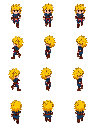
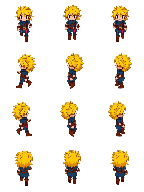
48px cells · 144×192 PNG
Preview enlarged 4×
Try the workflow · No sign-in needed
Create your character, choose the motion you need, then preview and download a compatible sample sheet for MV, MZ, or VX Ace.
Pixel-art adventurer, spiky blond hair, blue scarf, leather belt.
In your character’s Preview, click RPG Maker beside Unity and Godot. Or use Spritesheets → Download All → RPG Maker Format. No pack yet? Choose Create Walk to go to Animate.
See the app screenshotsFor object character sheets that should align with the tile grid, add ! to remove the character offset and bush transparency. A single object uses both prefixes, such as !$Chest.png. The prefix controls placement; animation stays in your RPG Maker event settings. See filename rules and official references.
All three use 3 × 4 character blocks, individually or eight per combined sheet. Choose the export preset, then place the PNG in the right project folder.
These are AutoSprite’s presets, not fixed engine limits. RPG Maker also supports custom character sizes. See the size reference.
No pack yet? Open RPG Maker from Preview or Download All and choose Create Walk. You’ll return to Animate with Isometric → 8-direction pack → Walk selected for the same character.
Before you export: each action needs accessible Down, Left, Right, and Up sheets from its pack. Free accounts use one unlock per RPG Maker pack; repeat downloads are free. Check credits and unlocks.
Highly consistent isometric directions: each pack generates eight views of the same character together. The exporter keeps Down, Left, Right, and Up from one pack version, with real views for both sides and no mirroring.
Map characters: this format does not include tilesets, face portraits, side-view battlers, or plugin-specific multi-frame animation sets.
See format details and troubleshootingQuick answers on consistent direction packs, export options, and getting your character into the game.
Yes. Choose your RPG Maker version when exporting, and AutoSprite assembles a compatible, transparent PNG for map characters such as heroes, followers, NPCs, and creatures.
These sheets use the engines’ standard character format, so no plugin is required to import them. Face portraits, side-view battlers, and tilesets use separate formats.
Import instructions for MV, MZ & VX AceIsometric animation packs are built for high consistency across all eight directions. Each action’s views are generated together, helping preserve the character’s appearance and motion as it turns.
Yes. Describe your character or upload a reference image in AutoSprite, then generate isometric packs for the actions you want.
The exported PNG is a finished character sheet you can import into RPG Maker. It is not a collection of parts for RPG Maker’s built-in character generator.
Create your characterOpen your character’s Animate tab and generate the directions together in an 8-direction pack.
No pack yet? You can still open RPG Maker export. Choose Create Walk to return to the same character’s Animate tab with the pack option selected. Complete packs can be unlocked in the exporter with one unlock per RPG Maker action.
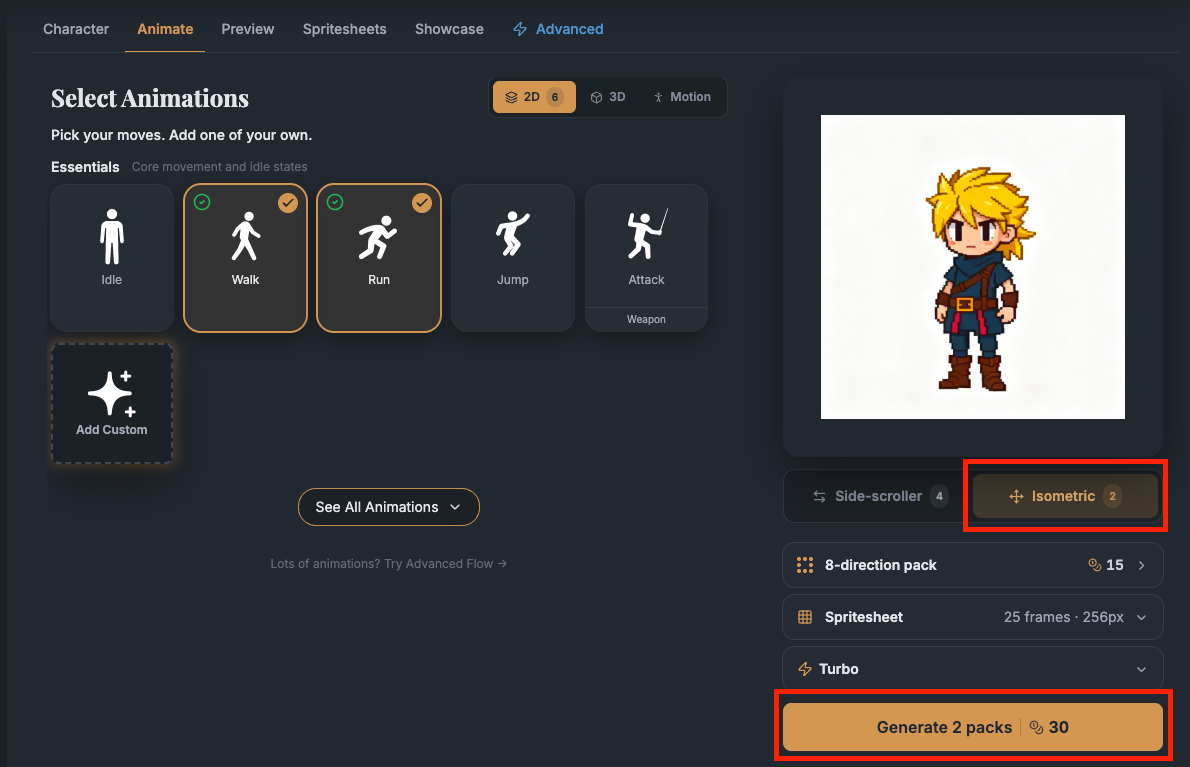 View full-size screenshot
There are two ways to open the same exporter:
Then choose your animations, RPG Maker version, and file layout. Preview the result and download your PNG or ZIP.
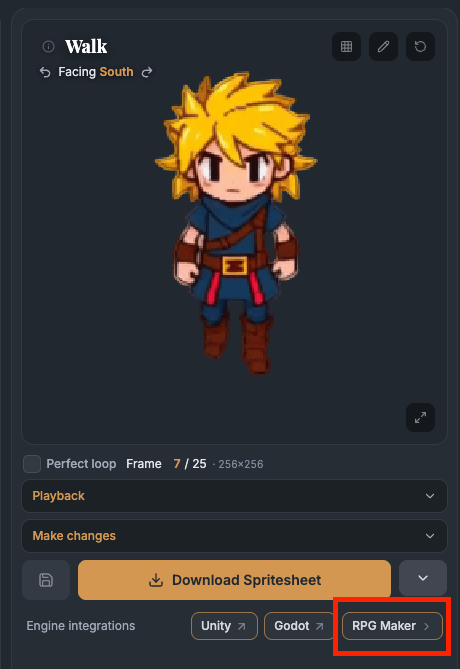 View full-size screenshot
You can export any eligible isometric pack action, including Idle, Walk, Run, Jump, Attack, and custom actions. Walk is optional.
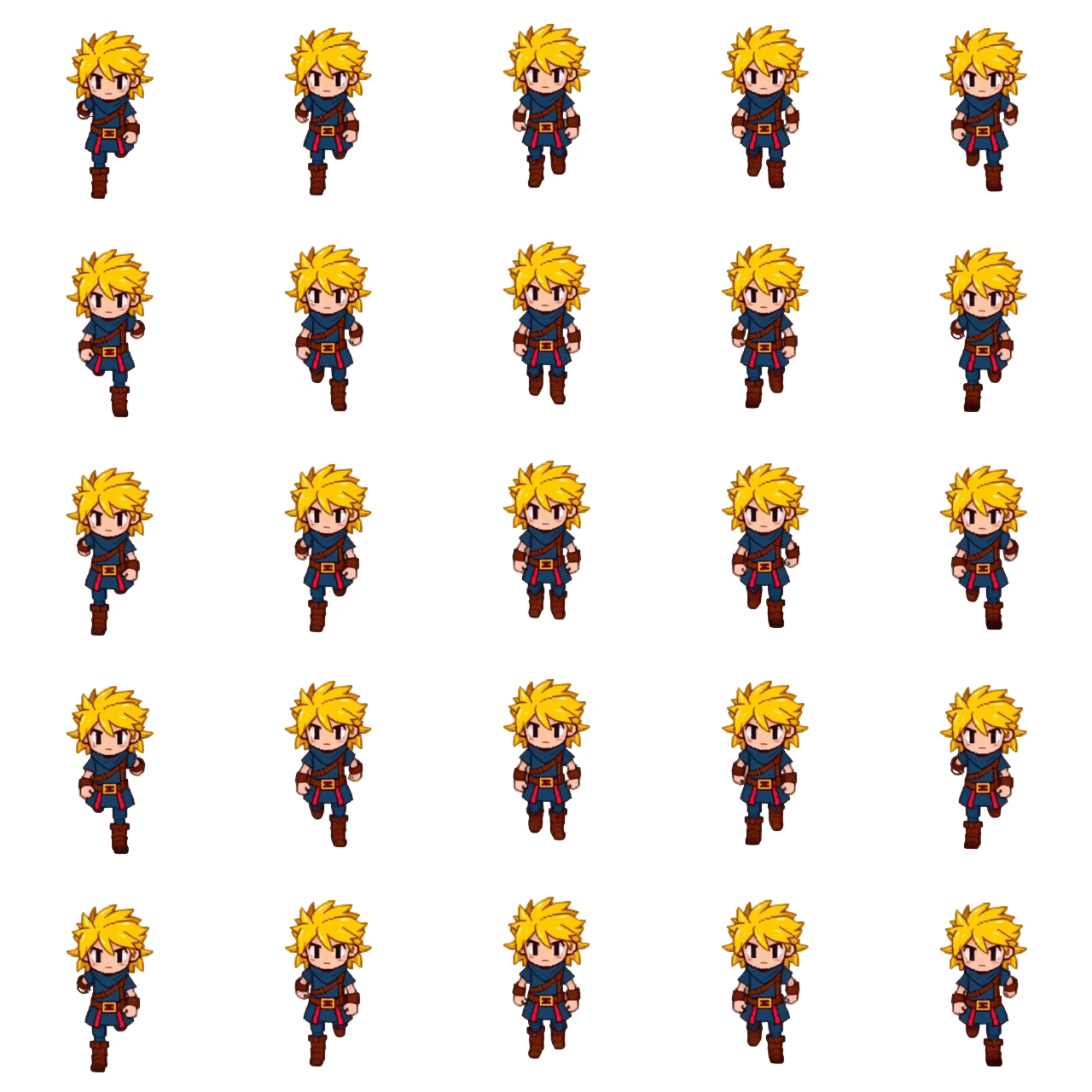
Select the actions you want in the exporter. Each gets its own block with three poses in four directions. Choose when to use each action inside RPG Maker; downloading the sheet does not automatically switch between actions in your game.
Both layouts are compatible. Choose based on how you want to organize your actions in RPG Maker.
With only one action selected, either option produces a single 3 × 4 sheet.
See layouts and action slotsAutoSprite suggests three poses from the source animation to fit RPG Maker’s standard 1 → 2 → 3 → 2 loop. The middle pose is also used when the character stops.
The export keeps three poses per direction, not every source frame. Review the loop before downloading; automatic selection is a starting point, and the source must contain the poses you want.
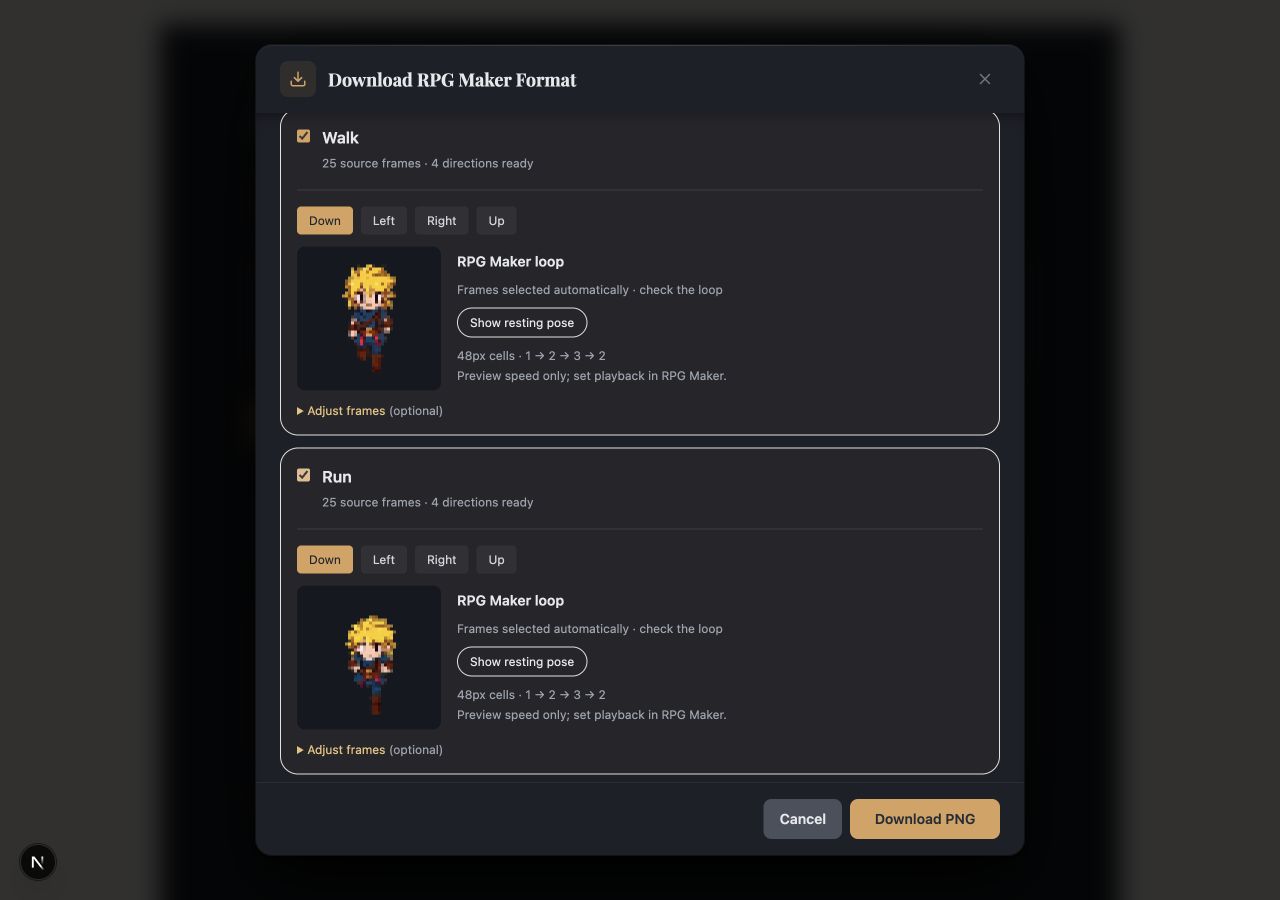 View full-size screenshot
AutoSprite sets the sheet dimensions for you based on your engine preset and file layout.
A single action uses a 3 × 4 cell grid. A combined sheet uses 12 × 8 cells. These pixel dimensions are AutoSprite presets; RPG Maker also supports custom cell sizes.
See the sprite sheet size referenceExtract the ZIP first if you downloaded multiple files, then copy the PNG into your game project:
For a combined sheet, select the action’s block. Keep the exported filename and playtest all four directions, including the resting pose.
Follow the full import guideKeep AutoSprite’s exported filenames: the character exporter adds $ when needed.
A single object can use both: !$Chest.png. The ! prefix controls placement, not whether an object animates; configure that in RPG Maker.
See filename examples and official referencesThis usually means RPG Maker is reading the PNG with the wrong grid. Check these three things:
Yes. You can preview and download the sample sheets in this page’s interactive demo without signing in.
To make your own character, start with a free AutoSprite account. Generation uses credits, and free accounts can unlock a complete RPG Maker pack for one unlock. Check the credits and unlocks in your account to see what your character needs.
How credits and sheet unlocks workStart from an idea or an image. Choose your animation packs and engine preset, then export your character sheets.