Use this guide for map characters: heroes, NPCs, followers, and creatures. AutoSprite assembles your selected animations into transparent PNGs with the correct RPG Maker layout.
Export from AutoSprite
Generate your isometric packs
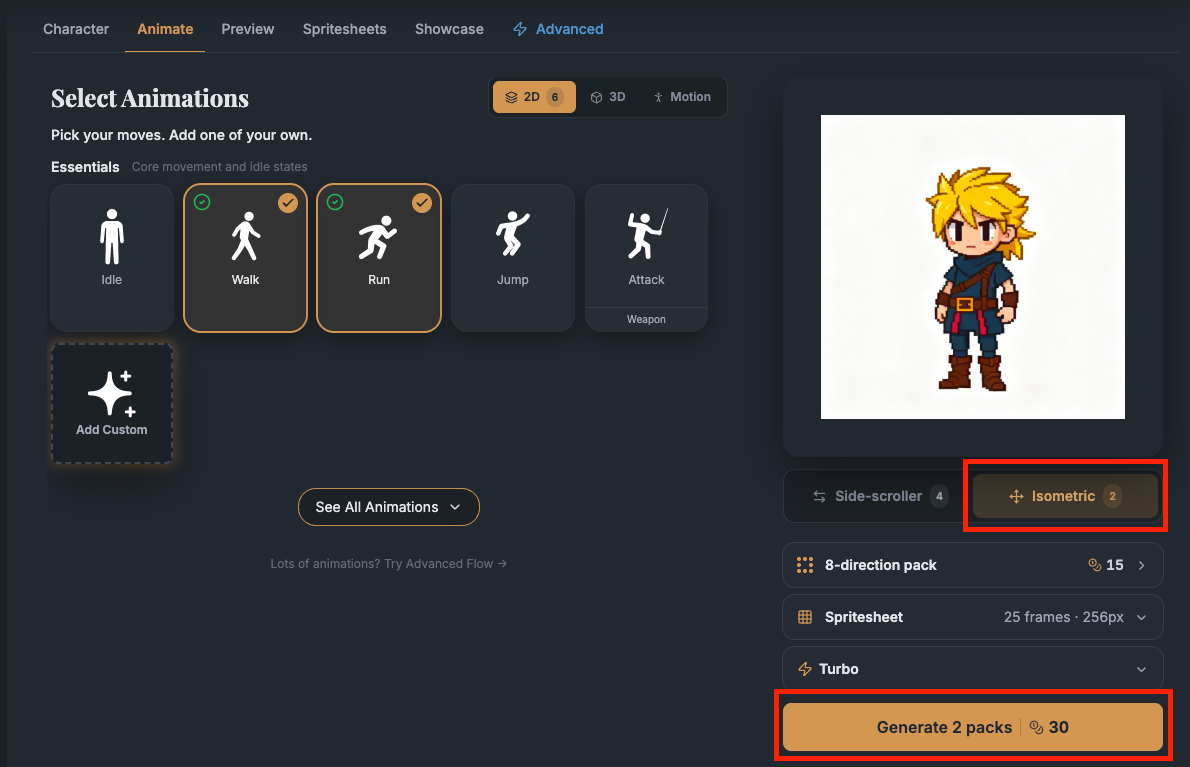
Create a character from a prompt or reference image. Open Animate → Isometric → 8-direction pack, select actions such as Walk and Run, then click Generate packs. Walk is optional; Idle, Jump, Attack, and custom packs can also be exported.
Consistent views from one pack: the exporter uses the actual Down, Left, Right, and Up animations from the same generation. It never mirrors a direction or mixes pack versions. Diagonal views are left out of the RPG Maker sheet.
Wait for all four required direction sheets to finish. They must have matching frame counts and canvas sizes. On a free account, one unlock opens all four directions for this pack’s RPG Maker export. Original sheets stay separately locked; repeat RPG Maker downloads are free. Credits and pricing.
Open the RPG Maker exporter
- Shortcut: Preview → Engine integrations → RPG Maker, beside Unity and Godot.
- Alternative: Spritesheets → Download All → RPG Maker Format. On small screens, Download All may be a download icon.
Both open the same exporter. If Walk is missing, choose Create Walk to open Animate with Isometric → 8-direction pack → Walk selected. If a pack is already complete, unlock it here instead of generating another.
See the Preview shortcut and Download All screenshots
In Preview, find Engine integrations below Download Spritesheet. Click RPG Maker next to Unity and Godot to open the exporter directly.

No eligible pack yet? Choose Create Walk to return to your character’s Animate screen with Isometric → 8-direction pack → Walk selected.
Or start from Spritesheets:
Open your character’s Spritesheets tab and click Download All.
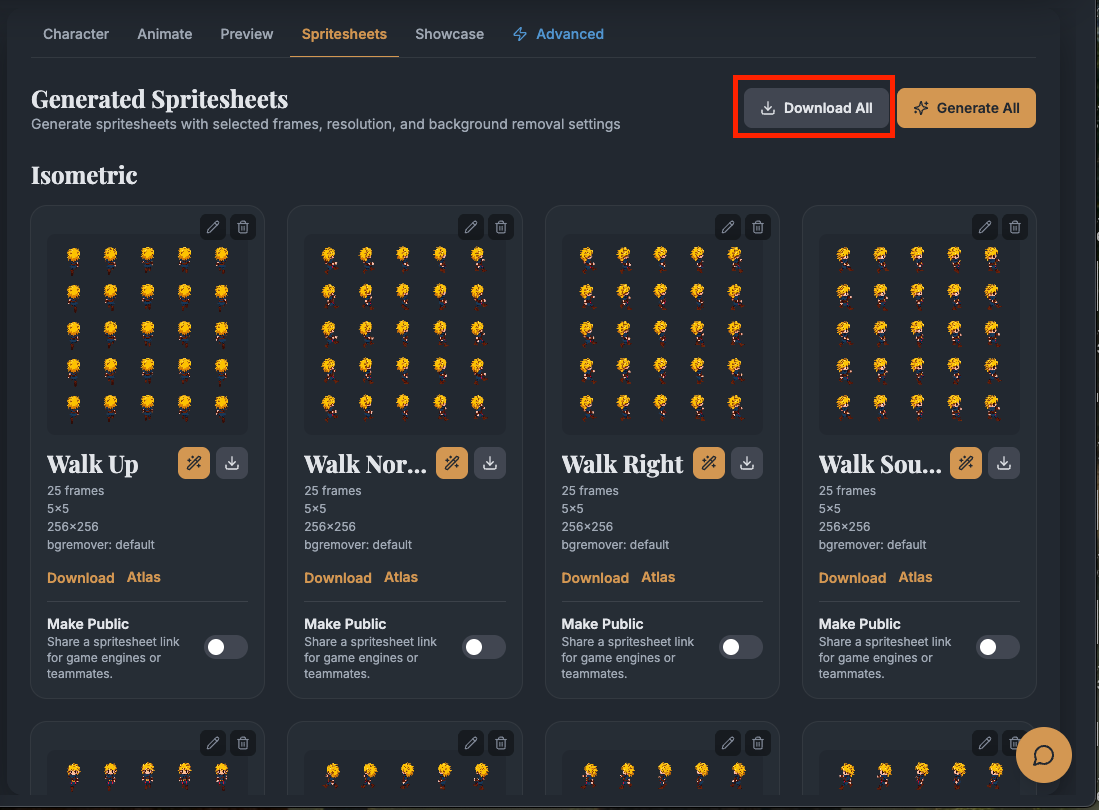
Select RPG Maker Format. This opens the same exporter as the Preview shortcut.

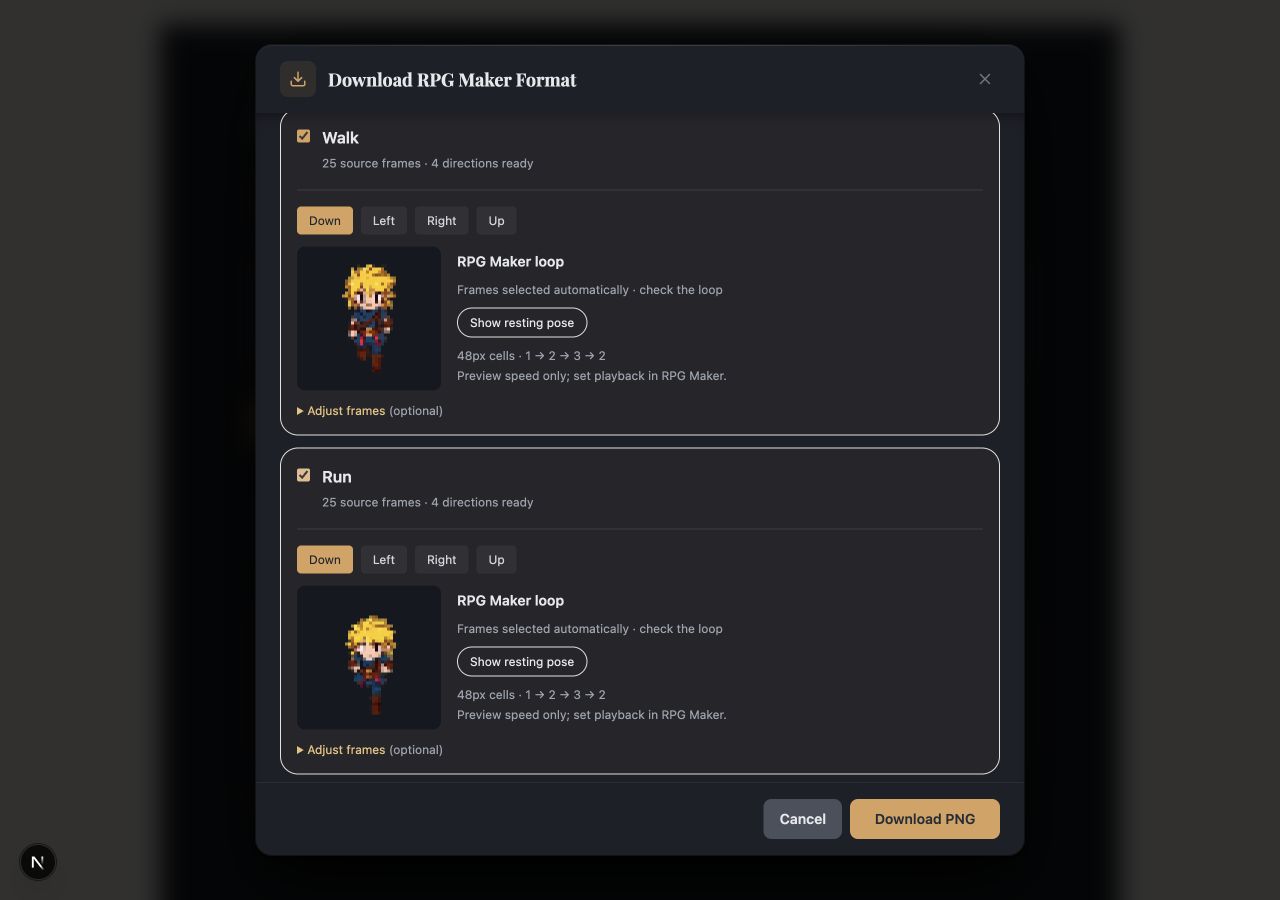
Select actions such as Walk and Run. Check each direction’s loop and resting pose, optionally adjust frames, then choose individual or combined PNGs. Multiple files arrive in a ZIP.
Select any screenshot to view it full size.
Choose actions, version, and file layout
Check the animations you want. Choose MV / MZ (48px) or VX Ace (32px), then pick a layout:
| Layout | What you download |
|---|---|
| Combined sheets | One action: a single-character PNG. Two to eight actions: one eight-block sheet, with unused slots transparent. More than eight: multiple sheets in a ZIP. |
| One PNG per action | A separate single-character PNG for each action. Multiple files arrive in a ZIP. |
Each action gets its own block. An Idle pack does not replace the resting pose inside Walk. Missing or locked directions are marked beside the action.
Check the loop and download
- Preview Down, Left, Right, and Up for each action.
- Click Show resting pose. For walking, the middle pose should look natural when stopped.
- Click Download PNG or Download ZIP. Keep the generated filenames.
RPG Maker plays three poses in the order 1 → 2 → 3 → 2. AutoSprite suggests frames from the source cycle; review them before exporting.
Adjust frames if the loop or resting pose needs work
- Open Adjust frames (optional), select an output pose, then choose a thumbnail from the full source animation. Selecting an already-used frame swaps the poses.
- For walking, use two different step poses with a neutral middle pose. The first and last poses do not need to match.
- The same frame positions apply to all four directions. Reset to automatic selection restores the suggestions.
- AutoSprite cannot invent a neutral pose missing from the source. Regenerate the animation if the available frames cannot produce a useful loop.
Only three source poses per direction are exported. When source timing is available, the preview follows its detected cycle; configure the final speed in RPG Maker.
Find action slots and understand export limits
The export panel and a ZIP's README.txt map each action to its file and slot. Combined sheets use slots 0–7, left to right, then top to bottom. AutoSprite accepts up to 64 packs per export and splits combined exports into files of up to eight blocks. This is not a limit on your project's total animations.
Import into MV, MZ, or VX Ace
Copy the PNG into your game project
Extract a ZIP first. Use the folder inside the project you are editing, not the RPG Maker installation folder. No JSON atlas is needed.
| Version | Project folder |
|---|---|
| MV | img/characters/ |
| MZ | img/characters/ |
| VX Ace | Graphics/Characters/ |
In VX Ace, you can also use Resource Manager → Graphics/Characters → Import.
Assign the character image
- MV and MZ: Database → Actors → Character for a party member; a map event's Image for an NPC.
- VX Ace: Database → Actors → the walking character Graphic; a map event's Graphic for an NPC.
For a combined sheet, select the action block shown in the export panel or README. Face and battler image fields use other formats.
Playtest movement and standing
Walk in all four directions, then stop. Check the resting pose and character size beside your map tiles. Moving NPCs need Walking Animation enabled (Walking Anim. in VX Ace).
For party members, confirm the edited actor is in the starting party. For NPCs, confirm the active event page uses your new image.
Switch actions in RPG Maker. Importing Walk, Run, or Idle blocks does not automatically switch between them. Set actor/event images and movement behavior in your project.
Try a sample character
Download a ready-made PNG to test the import steps. MV and MZ share the 48px sample; VX Ace has a 32px version. Keep its $ filename prefix.
Preview four directions and download a sample PNG
Try an AutoSprite export
One character. Four directions.
48px cells · 144×192 PNG
Preview enlarged 4×
View the full sprite sheet
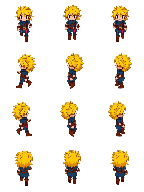
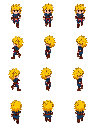
Sprite sheet sizes and layout
A frame is one pose; a sheet contains all the poses. Single-action sheets use a 3×4 grid. Combined sheets use 12×8 cells, arranged into eight character blocks.
| Export preset | One frame | Single action ($) | Combined sheet (no $) |
|---|---|---|---|
| MV | 48×48 | 144×192 | 576×384 |
| MZ | 48×48 | 144×192 | 576×384 |
| VX Ace | 32×32 | 96×128 | 384×256 |
See the direction rows, pose columns, and combined layout
One character: 3 columns × 4 rows
Use a $ filename. Each cell is one frame, with the same width and height as the other cells.
| Facing | 1 · Step | 2 · Stand | 3 · Step |
|---|---|---|---|
| Down | Step A | Standing | Step B |
| Left | Step A | Standing | Step B |
| Right | Step A | Standing | Step B |
| Up | Step A | Standing | Step B |
Walking cycle: 1 → 2 → 3 → 2. The middle column is also the resting pose.
Eight characters: 4 blocks across × 2 down
Without $, the engine expects 12 columns × 8 rows of frames. Each numbered block below contains its own 3 × 4 character.
Can RPG Maker use taller or larger characters?
Yes. The engine allows custom cell sizes while keeping the same grid. AutoSprite currently offers the 32px and 48px presets above.
- Single block, with
$: cell width = image width ÷ 3; cell height = image height ÷ 4. - Eight blocks, without
$: cell width = image width ÷ 12; cell height = image height ÷ 8.
For example, 48×96 cells make a 144×384 single-character sheet or a 576×768 combined sheet. Larger image dimensions change cell size, not the number of animation slots.
For custom art, keep every cell the same size, align the feet and horizontal center, and put transparent padding inside cells. Do not add gaps between cells. Official character-sheet guide.
Filename rules: $ and !
Keep AutoSprite's generated filename. $ tells RPG Maker to read one character block. Without it, the engine expects eight blocks.
| Filename example | Layout and behavior |
|---|---|
$MyHero_walk.png | One character/action; 3×4 cells. |
MyHero_Actions.png | Eight blocks; 12×8 cells. Unused slots remain transparent. |
!$Chest.png | One object; 3×4 cells; aligned to the tile grid. |
!Objects.png | Eight object blocks; 12×8 cells; aligned to the tile grid. |
When should I add ! for a door, chest, or other map object?
Use ! when an event object should sit on the tile grid. It removes the usual upward offset (6px in MV/MZ; 4px in VX Ace) and prevents bush transparency. For a single object, keep both prefixes: !$Chest.png.
! does not disable animation. Doors and chests can still animate; control that in the event settings. It is not required for every non-living sprite and does not apply to objects painted into tilesets.
AutoSprite's character exporter does not add !. Apply it manually when preparing object art, and reselect the image in RPG Maker after renaming. Official object-animation example.
Troubleshooting
Choose the problem you're seeing:
I see “Create Walk” or cannot select an animation
Choose Create Walk, generate an action, and wait for its sheets. Each eligible action needs completed Down, Left, Right, and Up sheets from the same pack version, with matching frame counts and sizes. An older walk made as separate Up, Right, and Down directions also qualifies; its Left view is mirrored from Right.
A complete locked pack has an Unlock · 1 unlock button. This covers RPG Maker export of all four directions for that generation. Check the message beside an unavailable action. Separate direction generations and side-view animations cannot replace a pack; a new incomplete version is never filled with older directions. Select at least one eligible action to enable download.
The character is cropped or only a small part is selected
- Single-action PNG: keep the leading
$. - Combined PNG: do not add
$. - Import the RPG Maker PNG, not a regular AutoSprite animation sheet. After renaming, select the new filename again in the actor or event settings.
The PNG does not appear in the image selector
Check the project folder: img/characters/ for MV/MZ, Graphics/Characters/ for VX Ace. Keep the PNG extension and reopen the image selector after copying. Choose the walking character field, not a face or battle image field.
The loop is jerky, feet slide, or the resting pose looks wrong
Preview all four directions and use Show resting pose. Open Adjust frames to select better source poses, especially a neutral middle pose for walking. Regenerate if the source lacks suitable poses.
The exporter scales the pack canvas as a whole, preserving its internal padding and motion. For manually edited sheets, keep cell size, foot baseline, and character center consistent.
The character faces the wrong way or a shield swaps sides
Check the source pack's actual views. Export rows are Down → Left → Right → Up, using real directions without mirroring. Regenerate incorrect source artwork. If an NPC cannot turn, check Direction Fix in its event options.
An NPC slides, keeps stepping while stopped, or disappears
- Walking Animation / Walking Anim.: enable it to animate movement.
- Stepping Animation / Stepping Anim.: disable it if the character should stand still when stopped.
- Direction Fix: usually leave it off for walking NPCs that need to turn.
- Empty rows or slots: choosing one makes the image disappear. Check the selected action block and every direction row.
The character floats or looks too large
Check the export preset and test at the game's actual scale. VX Ace's 32px preset is smaller than MV/MZ's 48px preset.
For a door or chest sitting too high, check the ! prefix. It removes the engine offset, but not transparent padding inside the image.
Other formats and references
This exporter creates map-character sheets. Face portraits, tilesets, and side-view battlers use different formats. An Attack pack exported here is still a map action, not a battler sheet. Plugins that support extra poses or directions have their own requirements.
Official RPG Maker references
- MV asset standards
- MZ asset standards
- Character sheet structure and custom sizes
- MZ map event options
- VX Ace: editor Help → Resource Specifications.