
Need the package or source code? Open the AutoSprite Unity Extension GitHub repository.
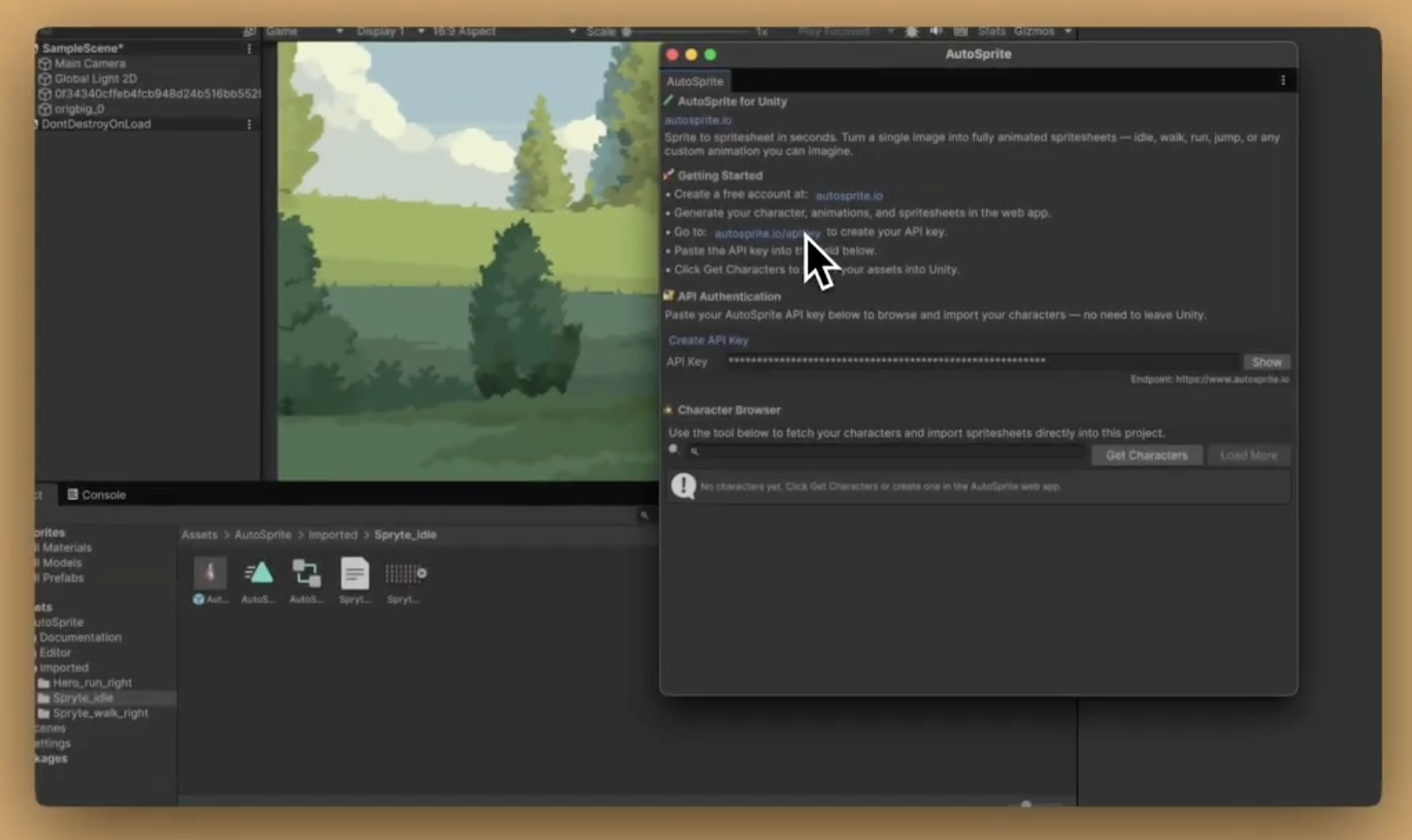
Import spritesheets generated by AutoSprite directly into Unity. The extension automatically slices your spritesheet, creates animation clips, and sets up an Animator Controller — so your AI-generated sprites are game-ready in seconds.
What It Does
- Adds an AutoSprite window inside the Unity Editor (found under the Window menu)
- Takes the spritesheet PNG and JSON files you export from AutoSprite
- Automatically slices the spritesheet into individual sprite frames
- Creates Unity
AnimationClipassets with correct frame timing - Generates an
AnimatorControllerso you can immediately preview and use your animations - Supports downloading spritesheets directly from AutoSprite using your API key
Requirements
- Unity 2021.3 or newer (any recent version of Unity should work)
- A spritesheet exported from AutoSprite (PNG + JSON files)
Installation
There are three ways to install — pick whichever works for you.
Option A: Unity Package Manager (Recommended)
This is the easiest way if you have Git installed on your computer.
Open Package Manager
In Unity, go to Window > Package Manager.
Add Package from Git URL
Click the + button in the top-left corner and select "Install package from git URL".
Paste the URL and Install
Paste the following URL and click Install:
https://github.com/autospriteio/autosprite-unity.git?path=/Assets/AutoSprite
Unity will download and set up everything automatically.
This method requires Git to be installed on your computer. If you don't have Git or aren't sure, use Option B instead.
Option B: Download and Copy
No Git required — just download and drag.
Download the ZIP
Go to the GitHub repository, click the green Code button, and select Download ZIP.
Extract and Copy
Unzip the downloaded file. Inside the unzipped folder, find the Assets/AutoSprite folder.
Add to Your Unity Project
Copy the entire AutoSprite folder into your Unity project's Assets folder. You should end up with:
YourProject/Assets/AutoSprite/
Switch back to Unity — it will detect the new files and import them automatically.
Option C: Clone with Git
For developers who prefer the command line:
cd YourUnityProject/Assets
git clone https://github.com/autospriteio/autosprite-unity.git AutoSprite
Verify Installation
After installing, go to the Unity menu bar and click Window. You should see AutoSprite in the dropdown. If you see it, the extension is installed correctly.
If you don't see it, make sure the folder structure is Assets/AutoSprite/Editor/ (the Editor folder must be inside AutoSprite), Unity has finished importing (check the bottom-right progress bar), and you're using Unity 2021.3 or newer.
Video Walkthrough
AutoSprite Unity Extension — Full Walkthrough
How to Use
Open the AutoSprite Window
In Unity's menu bar, go to Window > AutoSprite. A new panel will open — you can dock it anywhere in your editor layout.
Import from Files (Local Import)
Use this if you've already downloaded your spritesheet PNG and JSON from the AutoSprite web app.
Click Import
In the AutoSprite window, click Import Local Spritesheet...
Select Your Files
A file picker will open — select your .png spritesheet file. Then a second picker will open — select the matching .json metadata file.
Done!
The extension will import everything and show you a summary of what was created. Your new sprites, animations, and animator will appear in Assets/AutoSprite/Imported/.
Download from AutoSprite (Cloud Import)
Use this to pull spritesheets directly from your AutoSprite account without leaving Unity.
Enter Your Credentials
In the AutoSprite window, enter your API Base URL and API Key (you can find these in your AutoSprite dashboard).
Specify the Spritesheet
Enter the Character ID and Animation ID for the spritesheet you want.
Download & Import
Click Download & Import. The extension will download the spritesheet, import it, and create all the assets for you.
Using Your Imported Sprites
After importing, you'll find these assets in Assets/AutoSprite/Imported/:
- Sliced sprites — your spritesheet already cut into individual frames
- Animation clips (
.animfiles) — ready to use, with correct frame timing and looping - Animator Controller — drag this onto any GameObject with a
SpriteRendererto play your animations immediately
Quick Test
Create a GameObject
Create an empty GameObject in your scene via GameObject > Create Empty.
Add Components
Add a SpriteRenderer component and an Animator component to the GameObject.
Assign the Animator Controller
Drag the generated Animator Controller onto the Animator component's Controller field.
Press Play
Press Play — your animation should play automatically!
Troubleshooting
| Problem | Solution |
|---|---|
| "AutoSprite" doesn't appear in the Window menu | Make sure the files are in Assets/AutoSprite/Editor/. Restart Unity if needed. |
| Sprites look blurry | The extension sets point filtering by default, but if you re-import the texture manually, make sure Filter Mode is set to Point in the texture inspector. |
| Animation plays too fast or too slow | Select the .anim file and check the frame rate. You can also adjust the fps value in your JSON metadata before importing. |
| "Failed to parse spritesheet JSON" error | Make sure you're selecting the correct JSON file that was exported alongside your PNG from AutoSprite. |
| Cloud download fails | Double-check your API Base URL and API Key. Make sure your key hasn't expired. |
Updating the Extension
To update to a newer version:
- Delete the
Assets/AutoSprite/Editor/folder from your project - Follow the installation steps again with the new version
Don't delete Assets/AutoSprite/Imported/ — that's where your imported sprites live. Only delete the Editor folder when updating.
Support
If you run into any issues, open an issue on the GitHub repository or reach out through the AutoSprite app.
Manual Unity Import Guide