
AutoSprite offers five preset animation types plus custom animations. Each is optimized for specific game scenarios.
Preset Animations
Idle
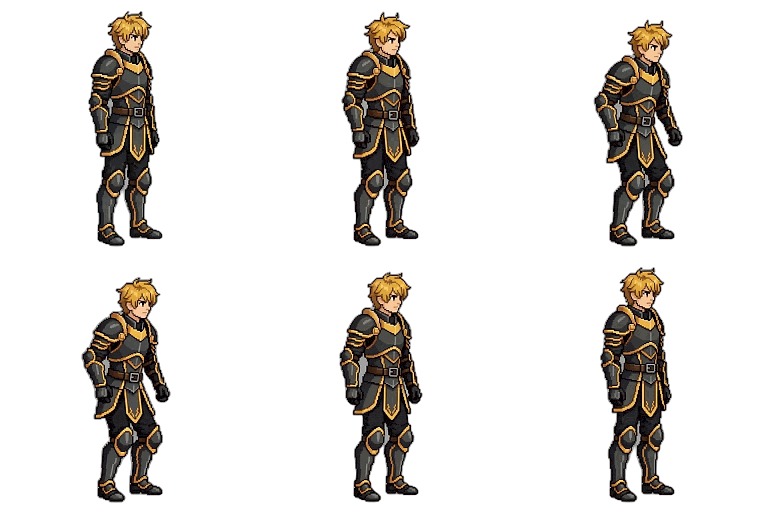
Idle
A subtle breathing/standing loop. The character stays in place with minimal movement - perfect for when the player isn't pressing any keys.
Use cases:
- Default state when not moving
- NPCs standing around
- Menu/selection screens
Typical frames: 6-12 frames Loop: Yes, seamless
Walk
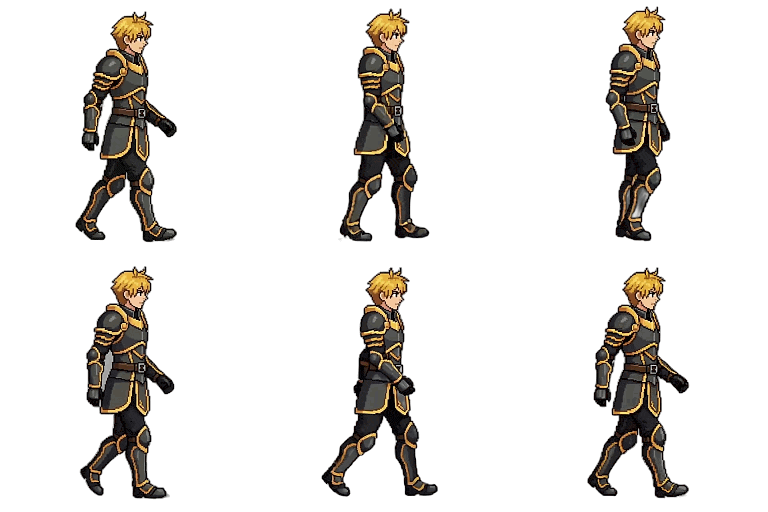
Walk
A steady walking cycle. The character moves forward at a moderate pace with natural arm swing and footwork.
Use cases:
- Standard movement speed
- Exploration gameplay
- Slower-paced games
Typical frames: 8-16 frames Loop: Yes, seamless
Run
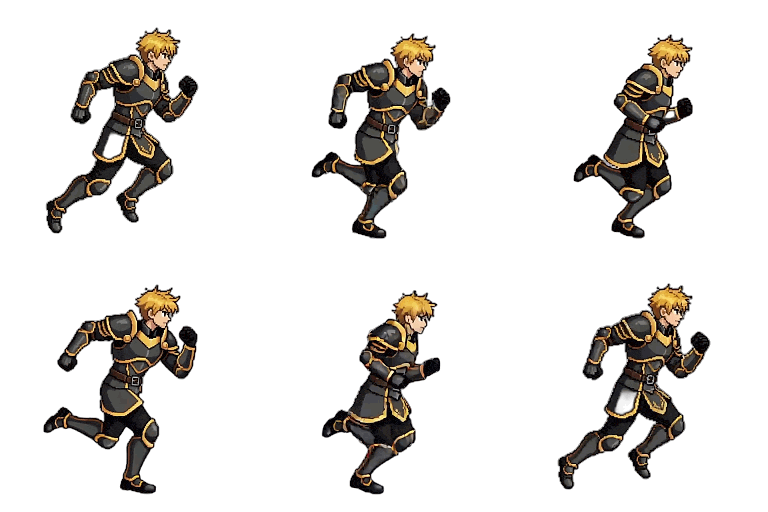
Run
A faster movement cycle with more dynamic motion. Longer strides and more arm movement than walk.
Use cases:
- Sprint/dash movement
- Action games
- When walk feels too slow
Typical frames: 8-12 frames Loop: Yes, seamless
Jump
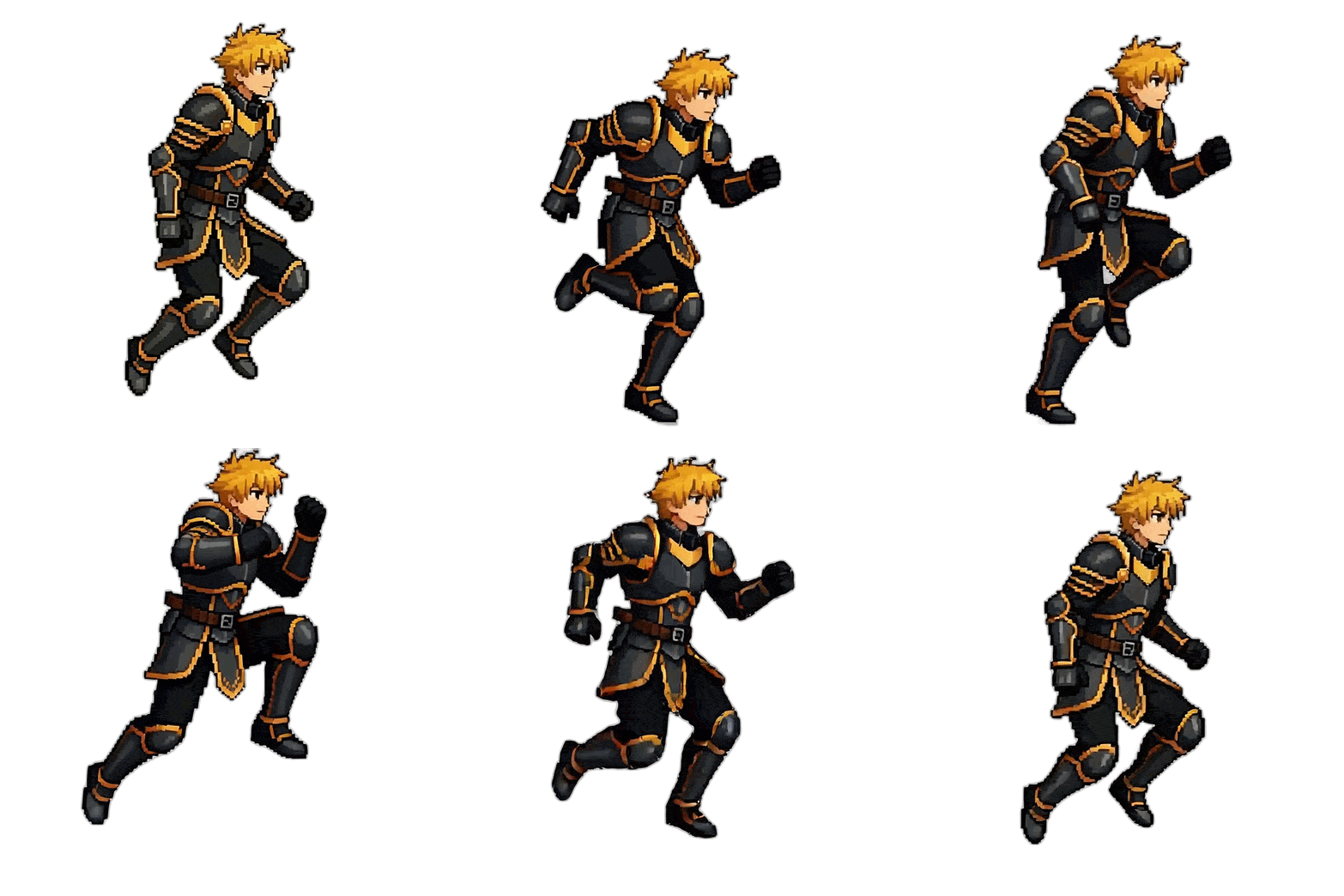
Jump
A complete jump arc from crouch through apex to landing. Can be split into jump-start, air, and land phases.
Use cases:
- Platformer games
- Action sequences
- Any game with vertical movement
Typical frames: 8-16 frames Loop: Usually no (plays once)
Attack
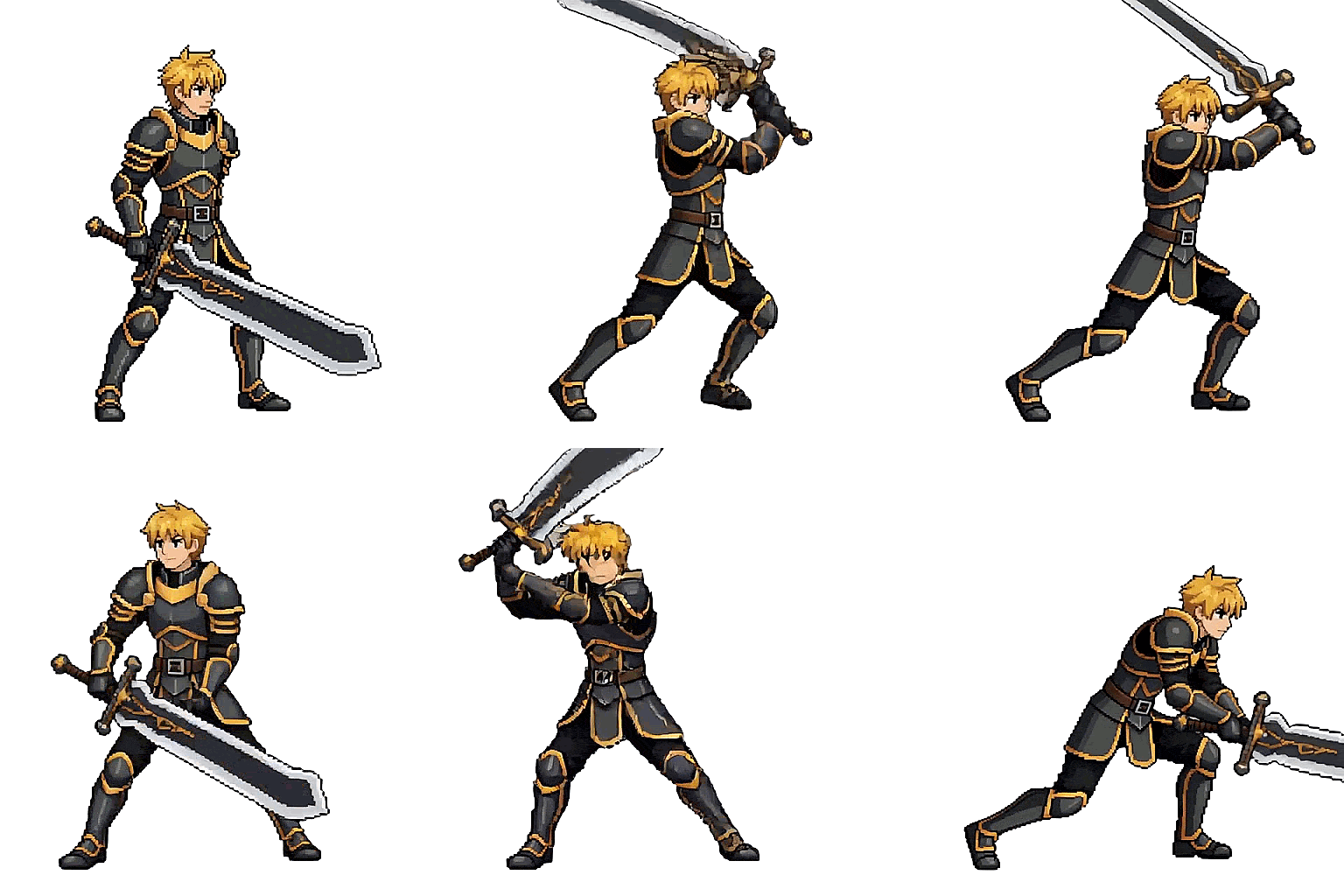
Attack
A combat animation - swing, slash, or strike motion. Works with sword, fist, or other weapon types.
Use cases:
- Combat systems
- Action games
- Breaking objects
Typical frames: 8-12 frames Loop: No (plays once per attack)
Custom Animations
Create any animation you can describe:
Good Custom Animation Ideas
| Animation | Prompt Example |
|---|---|
| Cast Spell | "Character raises staff and shoots magic from it" |
| Block | "Character raises shield in defensive pose" |
| Crouch | "Character crouches down low" |
| Celebrate | "Character jumps with arms raised in victory" |
| Die | "Character falls backward to the ground" |
| Climb | "Character climbing up a ladder" |
| Swim | "Character swimming forward" |
| Push | "Character pushing against something heavy" |
Writing Effective Prompts
Be specific about the motion, not just the end state. "Character swings sword from right shoulder to left hip" is better than "character attacks."
Include:
- Direction of movement
- Body part involvement
- Speed/intensity
Avoid:
- Vague descriptions
- Multiple actions in one animation
- Overly complex choreography
Motion Library
Instead of describing a motion, pick one and transfer it onto your character. This is the most reliable way to get complex motion right.
- ~100 built-in clips across 8 categories: Movement, Combat, Ranged, Traversal, Reactions, Interact, Work and Misc — selectable by action and camera angle.
- You can also reuse motion from your own other characters, or upload your own reference clip.
- 40 credits per animation for built-in clips and "from my characters". Uploaded clips scale with length (40 up to 3.9s, 50 at 4s, 60 at 5s, 70 at 6s).
- Engine tier:
pro(default) orultra— try the other if the result drifts from the reference clip. - Output is locked to 64 frames.
Find it on the Motion Library sub-tab of the Animate screen.
Storyboard Animations
For a sequence that doesn't fit a single action, the custom animation wizard has a storyboard mode: you write a list of beats and it generates one multi-reference clip covering the whole sequence.
- 4–10 seconds, up to 9 reference images, generated as one multi-reference clip.
ultra: 25 credits at 4s up to 63 at 10s.max: 35 at 4s up to 88 at 10s.
Editing an Existing Animation
You don't always need to regenerate from scratch. Edit Animation takes a finished clip and either restyles it ("give her a sword") or extends it with ~2s of new motion.
pro(cheaper and faster, the default): 20 creditsultra(motion-preserving, accepts a reference image): 100 credits
Needs a source clip of at least a few seconds, so very short turbo clips can't be edited.
Animation Comparison
| Animation | Movement | Loops | Credits |
|---|---|---|---|
| Idle | Minimal/breathing | Yes | video tier price |
| Walk | Forward locomotion | Yes | video tier price |
| Run | Fast locomotion | Yes | video tier price |
| Jump | Vertical arc | Optional | video tier price |
| Attack | Combat strike | No | video tier price |
| Custom | User-defined | User choice | video tier price |
Every animation costs the same — the price comes from the video tier you pick, not the animation type. Sidescroller animations are billed once; an isometric 8-direction pack costs a flat 15 credits for all eight directions, and individual isometric directions are billed per direction. See Credits & Pricing for the tier table.
Video Model & Clip Length
On the Animate tab there's a tier dropdown that picks which video engine animates your character, and how many seconds of motion it generates. It's the biggest lever on both quality and price.
| Tier | Best for | Lengths | Credits | Notes |
|---|---|---|---|---|
turbo | Fast 2s loops on AutoSprite's own self-hosted engine | 2s | 5 | Optional native sound at no extra credits on paid plans. The free-plan default. |
pro | Longer clips with precise start and end poses | 4s / 6s | 10 / 15 | First + last frame, optional sound |
ultra | The most expressive motion | 1–6s | 10 per second | Audio included. No last frame, so loops may not be seamless. |
max | Flagship quality | 4s / 6s | 35 / 53 | Audio included, first + last frame |
Free accounts are pinned to turbo; every paid plan unlocks all four. Your choice is remembered between sessions.
Custom animations underperform on turbo and pro. If a complex action comes out wrong, switch to ultra (1–2s) or max — or use the Motion Library, which transfers a real reference motion onto your character instead of relying on a text prompt.
Clip length and frame count
This is the most misunderstood setting in the app, so it's worth being precise.
Clip length is how many seconds of motion the AI generates. It is not a smoothness setting, and it doesn't change how long your character's steps are — stride comes from the motion prompt.
Here's the mechanic:
- Every clip renders at 24fps, so a 4s clip has ~96 real frames and a 6s clip has ~144.
- Your spritesheet then samples an evenly-spaced subset of those frames — however many the Frames setting says (4s+ clips default to 64).
- At 64 frames, a 4s clip gives you ~16 sprites per second of motion. A 6s clip gives ~10.7 — the same sprite count spread across 50% more motion.
A longer clip at the same frame count looks choppier, not smoother. What extra length actually buys you is more complete motion — the model isn't compressing anticipation, strike and recovery into 4 seconds. If you go to 6s, raise Frames to 64 or MAX.
Rules of thumb:
- Looping cycles (idle, walk, run) — stay at 4s, or
turbo's 2s. A longer clip just repeats the cycle and spends your frame budget on redundant strides. - One-shot actions (attack, jump, cast, death, hit reaction) — 6s is worth it, if you also raise Frames to 64 or MAX.
- Maximum crispness on a short move — 4s + MAX frames beats 6s + 64 frames.
- A 6s animation plays for 6 seconds at natural speed. Trim it with the preview's loop-range slider, or play it faster in your engine.
Direction Variants
AutoSprite offers two animation projection modes:
Sidescroller (2D side-view)
All sidescroller animations generate a single right-facing sprite. Your game flips it horizontally for left-facing movement, so you only pay once per animation.
Kinds: idle, walk, run, jump, attack, custom, and the ready-made presets (death, victory, punch, dance, …). Weapon attack moves (sword, greatsword, spear, …) have their own call: POST /api/v1/characters/:id/attacks / MCP generate_attack_moves.
Isometric (top-down / 3⁄4 RPG view)
The recommended way to animate isometric characters is an 8-direction pack: one render produces all eight directions — up, northeast, right, southeast, down, southwest, left, northwest — as eight spritesheets, for 15 credits per action. Every direction is really rendered, not mirrored, so asymmetric details (a sword hand, a shield, a side part) stay on the correct side.
Pack actions: idle, walk, run, jump, attack (with an optional weapon), custom, and any preset (e.g. death).
- App: Animate → Isometric → 8-direction pack
- REST API:
POST /api/v1/characters/:id/packs - MCP:
generate_isometric_pack
Each sheet's kind names its direction, e.g. iso_walk_up or iso_walk_left.
Looping is automatic for idle, walk, and run (sidescroller and isometric). The first frame is reused as the last frame so the cycle is seamless. jump and attack play once.
Individual directions are there when you only need some facings — say, just a down-facing idle. Each is a separate render billed at the video tier price, named iso_<action>_<direction> (up, northeast, right, southeast, down); your game mirrors the east side for left, northwest and southwest. From three directions up a pack costs the same or less, and it keeps the character consistent across every view.