
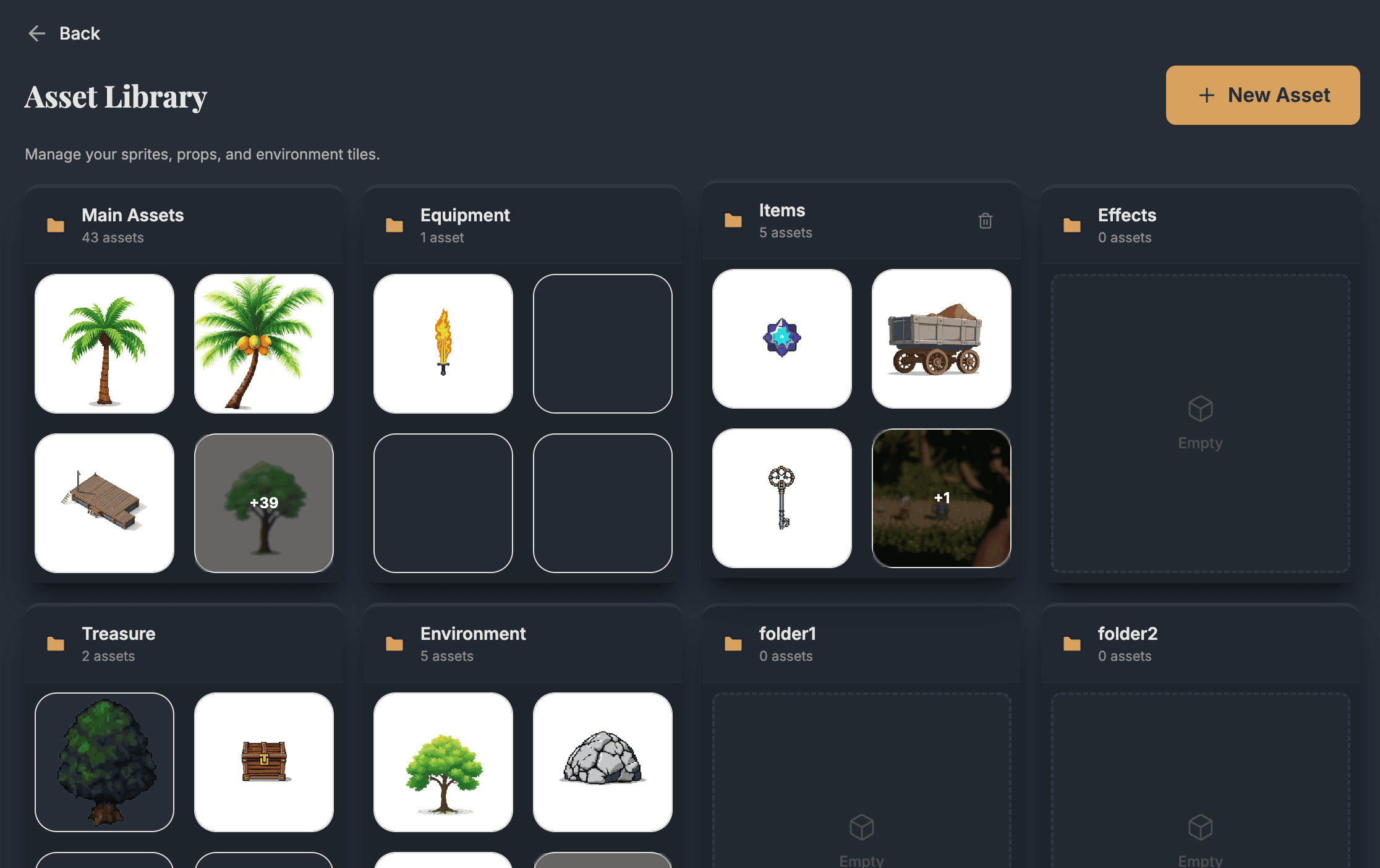
The Asset Library is your workspace for non-character sprites: items, effects, props, and other game assets that need animation.
What Are Assets?
Assets are any animated sprites that aren't characters:
- Items - Weapons, potions, coins
- Effects - Explosions, magic sparkles, smoke
- Props - Doors, chests, levers
- UI Elements - Animated buttons, indicators
Unlike characters, assets typically have single animations rather than full movement sets.
Creating Assets
Open Asset Library
Click "Assets" in the main sidebar to switch from Characters to Assets view.
Create New Asset
Click "New Asset" and upload your base image.
Describe the Animation
Write what motion you want:
- "Coin spinning and glinting"
- "Treasure chest opening with sparkles"
- "Fire flickering"
Generate
AutoSprite creates your animated asset as a spritesheet.
Organizing with Folders
Keep your assets organized with folders:
Creating Folders
- Click the folder icon in the Assets sidebar
- Name your folder (e.g., "Items", "Effects", "UI")
- Drag assets into folders
Default Folder
New assets go into the default "Uncategorized" folder until you organize them.
Create folders for each game project to keep assets separated and easy to find.
Asset vs Character: When to Use Which
| Use Assets For | Use Characters For |
|---|---|
| Single animation | Multiple animations (idle, walk, run) |
| Objects/items | Playable characters or NPCs |
| Effects/particles | Entities that move around the world |
| Static props with animation | Anything with directional sprites |
Exporting Assets
Asset exports work the same as characters:
- PNG spritesheet - All frames in grid
- JSON atlas - Frame data and timing
Assets export without directional variants (since they don't have multiple facing directions).
Best Practices
Keep Asset Images Simple
- Clear subject on plain background
- Single object per image
- Consistent lighting/style across related assets
Match Your Art Style
If your game has pixel art characters, use pixel art assets. AutoSprite works with any art style, but consistency is key for your game's visual cohesion.
Name Assets Clearly
Use descriptive names:
- "coin_gold_spinning"
- "chest_wooden_open"
- "explosion_fire_small"
This makes it easier to find and organize assets as your library grows.
Next Steps
Learn about export formats for your game engine:
Export Formats