
Advanced Mode is a premium tool for generating animations in bulk — multiple characters, multiple animations, all at once. Instead of generating one animation at a time, you build a moveset and run everything through a pipeline.
Advanced Mode — Batch Animations in action
Advanced Mode is available on Pro and Enterprise plans. You'll need credits to run generations.
Getting There
In the header, click Advanced Mode — or visit it directly at autosprite.io/advanced.
Batch Animations Overview
Advanced Mode has three views:
- Empty State — Start here. Select characters and build a moveset to begin.
- Wizard — Configure which animations to generate (standard, isometric, or custom).
- Pipeline Matrix — A grid showing every character × animation combination with a 4-stage pipeline for each.
Step-by-Step Walkthrough
1. Select Characters
Use the sidebar to pick which characters to include in your batch. Check off as many as you need.
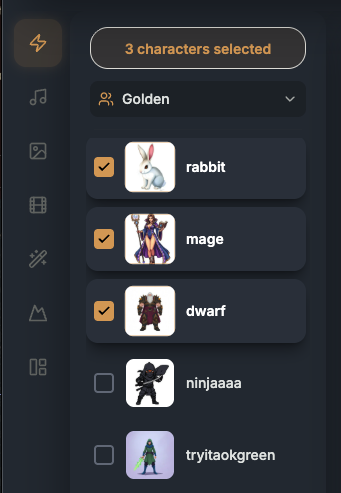
Start with a small batch (2–3 characters) to test your moveset before scaling up.
2. Build Your Moveset
The wizard lets you pick which animations to generate for every selected character.
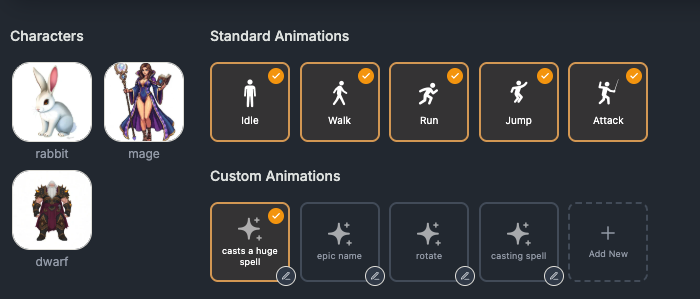
Standard Animations
The classic set: Idle, Walk, Run, Jump, Attack. One click to add any of these.
Isometric Animations
Generate animations from up to 5 isometric directions for games using an isometric camera: up (N), right (E), down (S), northeast (NE), and southeast (SE). Pick any subset on the compass picker on the Animate screen. West, northwest, and southwest are produced at game-render time by horizontally flipping their east-side pair (right → left, NE → NW, SE → SW), so you don't pay for them. Each direction is billed and generated separately.
Custom Animations
Create your own animation with a text prompt describing the action. Custom animations use the same wizard as the standard Custom Animation flow.
Save & Load Movesets
Built a moveset you like? Save it for reuse later. Load a saved moveset to skip the wizard entirely.
3. The Pipeline Matrix
Once your moveset is configured, you'll see the Pipeline Matrix — a grid with one row per character × animation, and four columns representing the pipeline stages.
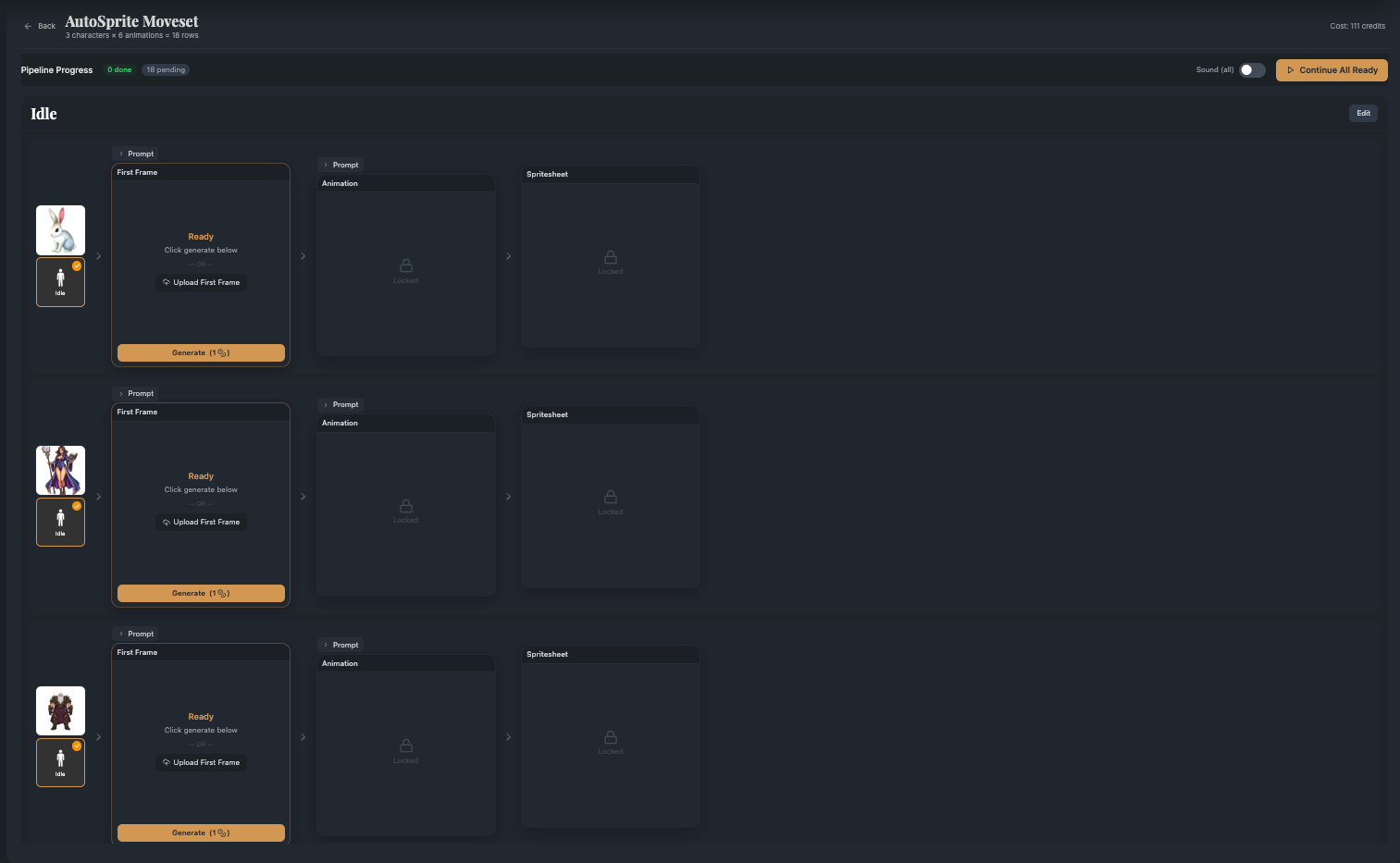
| Stage | What It Does | Credit Cost |
|---|---|---|
| 1. First Frame | Generate, upload, or import a starting pose from your Poses library | 1 credit (3 with the Pro first-frame model, 10 ultra) |
| 2. Last Frame | Optional - generate an ending pose for non-looping animations | 1 credit |
| 3. Video | Generate the animation video from your frames | Depends on the video tier — 5 at turbo, up to 53 at max |
| 4. Spritesheet | Convert video to spritesheet - set frame size, max frames, bg removal, pixel art filter | 0 credits |
Each row has its own video model picker (tier + clip length), image tier, and first-frame model — set them per row, or for every row at once from the defaults bar. The live cost preview above the matrix always reflects your current selection.
Stage 1: First Frame
Every animation needs a starting frame. You can:
- Generate one from a prompt (uses the prompt helper for best results)
- Upload your own image
- Import from Poses — reuse a pose you've already saved in your Poses library
Stage 2: Last Frame (Optional)
For non-looping animations (attacks, jumps, one-shot actions), generate a distinct ending pose. Skip this for looping animations like idle or walk.
Stage 3: Video
This is the main generation step. The AI creates the animation video from your first frame (and last frame, if provided) plus the action prompt.
Stage 4: Spritesheet
Convert the video into a spritesheet. Configure:
- Frame size — pixel dimensions per frame
- Max frames — cap the number of frames extracted
- Background removal — strip the background for transparent sprites
- Pixel art filter — apply a pixel art style to the output
4. Run All
Hit "Run All" to execute the entire pipeline for every row in the matrix. The system processes each stage sequentially, and you can track progress in real time.
You can also run individual stages or individual rows if you want more control.
5. Download Results
Once the pipeline completes:
- Spritesheet — Download the final spritesheet PNG for each animation
- Audio — If sound was enabled, download the audio file separately
Cost Reference
| Action | Cost |
|---|---|
| Generate first frame | 1 credit (3 with the Pro first-frame model, 10 ultra) |
| Generate last frame | 1 credit |
Generate animation video (turbo, 2s) | 5 credits |
Generate animation video (pro, 4s / 6s) | 10 / 15 credits |
Generate animation video (ultra, 1–6s) | 10 credits per second |
Generate animation video (max, 4s / 6s) | 35 / 53 credits |
| Sound | Optional and free at turbo; pro costs the clip price again; included free at ultra and max |
| Convert to spritesheet | 0 credits |
| Isometric animations | Multiply by number of directions selected (1–5) |
A standard turbo sidescroller animation (first frame + video + spritesheet) costs 6 credits. An isometric animation costs 6 credits per selected direction — the default 3-direction set (up/right/down) is 18 credits, a full 5-direction set (up/right/down/NE/SE) is 30 credits. West/NW/SW are mirrored at render time, so they're never billed. Higher video tiers scale these numbers up; see Credits & Pricing.
Tips & Best Practices
Keep the Prompt Helper enabled when generating first frames — it adds instructions that ensure consistent framing and grey backgrounds for cleaner results.
- Use the Poses library — If you've already generated good poses for a character, import them as first frames instead of regenerating
- Last frame is optional — Only use it for one-shot actions. Looping animations (idle, walk) don't need a last frame
- Start small — Test with one character and one animation before running a full batch
- Save your movesets — Once you've dialed in a good set of animations, save the moveset for reuse across characters
Coming Soon
Advanced Mode is expanding. Here's what's on the roadmap:
Music
Generate background music and sound effects for your game
Imagine
AI-powered concept art and asset generation
Cutscenes
Create animated cutscenes from your characters
VFX
Particle effects, explosions, magic — all as spritesheets
Backgrounds
Generate tiling backgrounds and parallax layers
UI Maker
Create game UI elements — buttons, frames, health bars