
Need the plugin or source code? Open the AutoSprite Godot Extension GitHub repository.
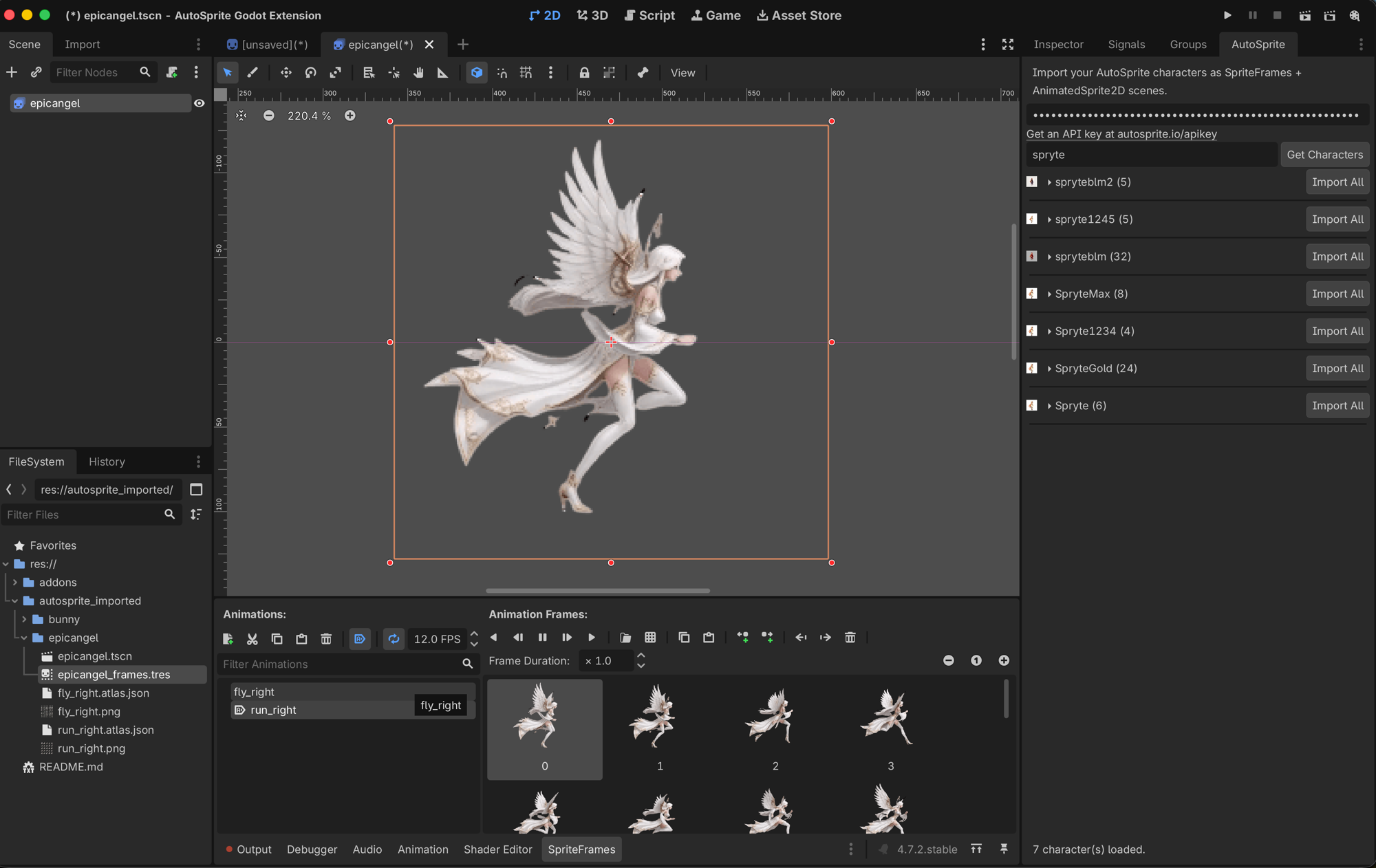
Import spritesheets generated by AutoSprite directly into Godot. The extension adds an AutoSprite dock to the editor where you browse your character roster and import any animation with one click — it builds the SpriteFrames resource and a ready-to-drop-in AnimatedSprite2D scene for you.
What It Does
- Adds an AutoSprite dock to the Godot editor (right dock panel, next to Inspector)
- Browses your AutoSprite character roster with thumbnails, search, and pagination
- Downloads spritesheets straight from your account — no manual file juggling
- Builds one SpriteFrames resource per character; every animation you import is added to it (
idle_right,run_right, plus your custom animations by name) - Generates a
.tscnscene with anAnimatedSprite2Dalready wired up — nearest-neighbor filtering on, autoplay set
Requirements
- Godot 4.2 or newer
- A free AutoSprite account and API key
Installation
Option A: Download and Copy
Download the ZIP
Go to the GitHub repository, click the green Code button, and select Download ZIP.
Copy the addon folder
Unzip the file and copy the addons/autosprite folder into your Godot project, so you end up with:
res://addons/autosprite/
Enable the plugin
In Godot, go to Project → Project Settings → Plugins and enable AutoSprite. The dock appears in the upper-right dock area.
Option B: Clone with Git
For developers who prefer the command line:
git clone https://github.com/autospriteio/autosprite-godot.git /tmp/autosprite-godot
cp -r /tmp/autosprite-godot/addons/autosprite your-project/addons/
Then enable the plugin in Project → Project Settings → Plugins.
Verify Installation
After enabling, you should see an AutoSprite tab in the right dock panel (next to Inspector / Node / History).
If the dock doesn't appear, make sure the folder is exactly res://addons/autosprite/, the plugin is enabled in Project Settings, and you're on Godot 4.2 or newer.
How to Use
Get an API key
Create a free account at autosprite.io, generate your character and animations in the web app, then create an API key at autosprite.io/apikey.
Connect
Paste the API key into the AutoSprite dock and click Get Characters. Your roster appears — use the search field to filter and Load More to paginate. The key is stored in your editor settings, not the project, so it never ends up in your game's repository.
Import
Expand a character to see its animations, then click Import on one animation — or Import All to grab everything for that character.
Using Your Imported Sprites
Each import lands in res://autosprite_imported/<Character>/:
<anim>.png— the spritesheet texture<Character>_frames.tres— oneSpriteFramesresource per character, holding every animation you've imported<Character>.tscn— a scene with anAnimatedSprite2Dwired to theSpriteFrames. Created once and never overwritten, so your tweaks are safe.
Quick Test
Open the scene
Double-click <Character>.tscn in the FileSystem dock.
Preview an animation
Select the node — the SpriteFrames panel opens at the bottom. Pick an animation and press its ▶ button to watch it play right in the viewport. Or run the scene (⌘R / F6) — it autoplays.
Drop it into your game
Drag <Character>.tscn into any scene, then switch animations from code:
$Character.play("run_right")
Custom animations use the name you gave them in the web app — $Character.play("Bite_right").
Troubleshooting
| Problem | Solution |
|---|---|
| Dock doesn't appear | Confirm the plugin is enabled in Project Settings → Plugins and the folder is res://addons/autosprite/. |
| Get Characters shows nothing | Double-check your API key, and make sure you've created characters in the AutoSprite web app. |
| Character fetch fails / HTTP 401 | Verify your API key at autosprite.io/apikey — it may have expired. |
| Sprites look blurry | The generated scene uses nearest-neighbor filtering. On your own nodes, set CanvasItem → Texture → Filter to Nearest. |
| Animation plays too fast or slow | Animations default to 12 fps. Select the SpriteFrames resource and adjust the animation speed. |
Updating the Extension
Delete res://addons/autosprite/ and copy in the new version, then re-enable the plugin if needed.
Your imports under res://autosprite_imported/ are never touched by updates — only the addons/autosprite folder changes.
Support
If you run into any issues, open an issue on the GitHub repository or reach out through the AutoSprite app.
Manual Godot Import Guide