
AutoSprite exports your animations in formats compatible with all major game engines. This reference covers what you get and how to use it.
What You Download
The regular AutoSprite export includes PNG spritesheets and JSON atlas files. Dedicated exports, such as RPG Maker Format, package the art differently for their target application.
PNG Spritesheet
A single image containing all animation frames arranged in a grid.
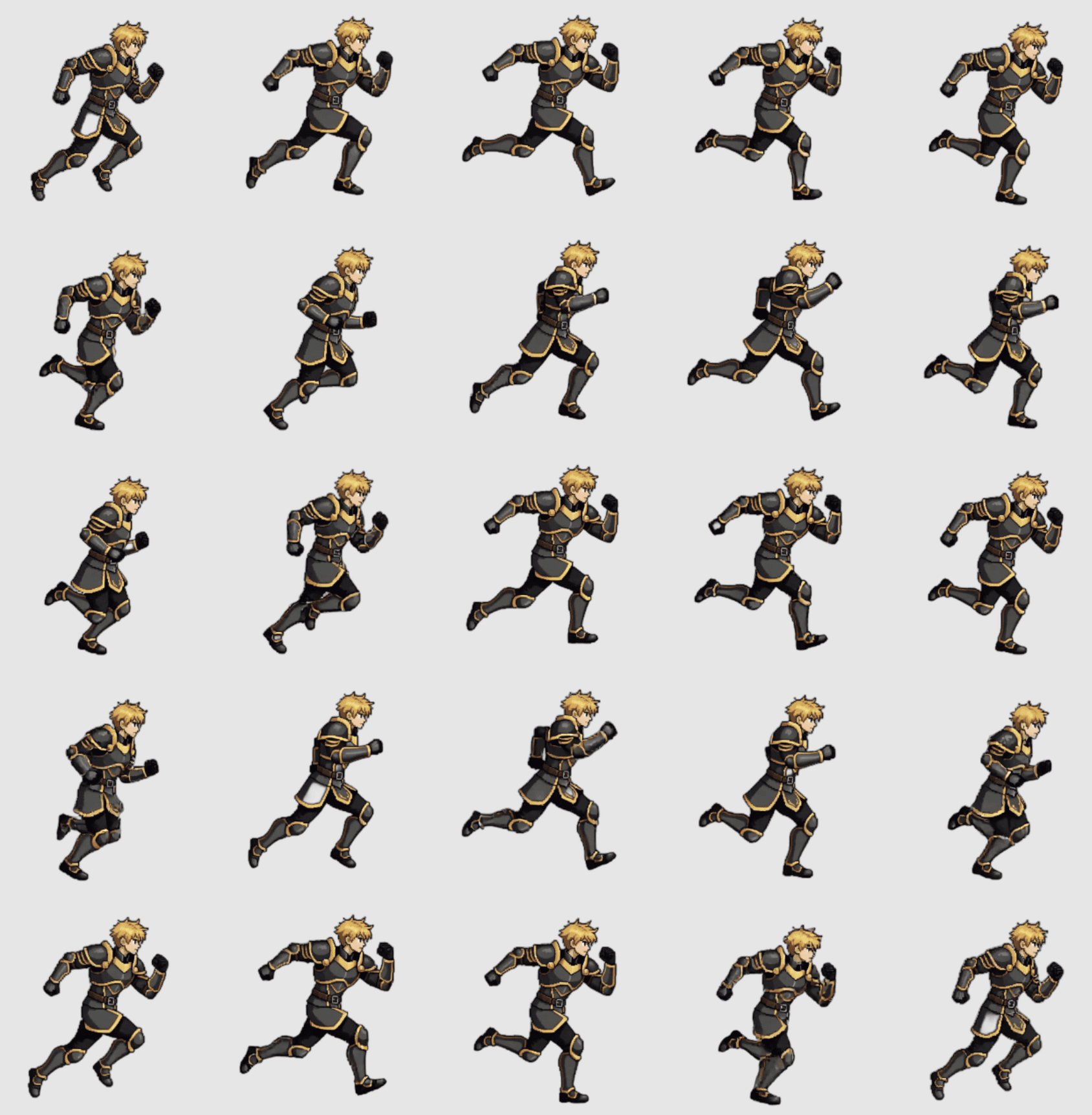
Properties:
- Format: PNG with transparency
- Layout: Horizontal strip or grid
- Frame size: Consistent across all frames
- Backgrounds: Transparent (removed automatically)
JSON Atlas
Metadata file describing frame positions and animation timing.
{
  "frames": {
    "idle_down_0": {
      "frame": { "x": 0, "y": 0, "w": 128, "h": 128 },
      "sourceSize": { "w": 128, "h": 128 }
    },
    "idle_down_1": {
      "frame": { "x": 128, "y": 0, "w": 128, "h": 128 },
      "sourceSize": { "w": 128, "h": 128 }
    }
  },
  "animations": {
    "idle_down": ["idle_down_0", "idle_down_1", "idle_down_2"]
  },
  "meta": {
    "framerate": 12,
    "size": { "w": 512, "h": 512 }
  }
}
Contains:
- Frame coordinates (x, y, width, height)
- Animation sequences (which frames belong to which animation)
- Frame rate / timing information
- Spritesheet dimensions
Download Options
Individual Animations
Download specific animations:
- Click the download icon next to any animation
- Get just that animation's frames and atlas
Full Character Export
Download everything at once:
- Open the Spritesheets tab and click Download All
- Choose the regular AutoSprite Format option
- Receive a ZIP containing all animations
Per-Direction Downloads
For isometric characters you can download all generated directions together, or each direction separately. The 8-direction pack generates all eight views. Individual-direction mode uses five generated views with mirrored western counterparts — see Animation Types for the full mapping.
Other Export Formats
Beyond the PNG + JSON pair, the Spritesheets tab also offers:
| Format | What you get |
|---|---|
| GIF | A shareable animated GIF. Free accounts include an AutoSprite watermark; paid accounts can toggle it off. |
| RPG Maker Format | Selected isometric pack actions in native PNGs, individually or up to eight per combined sheet. Uses actual Down, Left, Right, and Up views. Multiple files arrive in a ZIP with a slot guide; choose 48px cells for MV/MZ or 32px for VX Ace. |
| Stream Avatars export | A packaged export for Stream Avatars, bundling your animations. |
| Full character ZIP | Every animation's sheet, atlas and individual frames in one archive. |
RPG Maker character export
Open your character's Preview tab and click RPG Maker beside Unity and Godot in the Engine integrations row below Download Spritesheet. You can also use Spritesheets → Download All → RPG Maker Format. Both open the same exporter.
The RPG Maker option stays clickable without an eligible pack. Choose Create Walk to return to the same character's Animate tab with Isometric → 8-direction pack → Walk selected. Generate the actions you need, such as Walk, Run, or Idle, then return when their spritesheets are ready.
Each selected action requires accessible Down, Left, Right, and Up sheets from one pack generation, with matching frame counts and canvas sizes. The exporter uses the actual directions without mirroring or mixing pack versions. Walks generated as separate directions before packs existed still export: the exporter uses your Up, Right, and Down sheets and mirrors Right to make Left. Free accounts can unlock all four directions for RPG Maker export with one unlock per pack generation. Original sheets and diagonals stay separately locked. Repeat RPG Maker downloads and switching between the two engine presets do not use another unlock.
Each action exports three poses per direction, even when the source has more frames. Check the RPG Maker loop in all four directions and use Show resting pose to inspect the middle pose. Adjust frames (optional) lets you correct the suggested poses. Adding actions adds separate character blocks; it does not retain every source frame. Configure action switching and playback in RPG Maker.
Choose MV / MZ (48px) or VX Ace (32px), then Combined sheets or One PNG per action. Combined sheets hold up to eight actions per PNG; additional actions are split across sheets. Multiple files arrive in a ZIP with a slot guide. See the RPG Maker guide for screenshots, dimensions, filename rules, and import instructions for all three engines.
Output Settings
Source spritesheet frame count and resolution are chosen at generation time, in the Spritesheet settings panel on the Animate tab. Dedicated formats can have additional output settings: RPG Maker Format lets you choose actions, preview automatically selected poses in the RPG Maker loop, and optionally adjust frames. Output settings include 48px or 32px cells and individual or combined character sheets. See the RPG Maker export and import steps.
| Setting | Options |
|---|---|
| Frames | 16, 25, 49, 64, or MAX (every extracted frame, capped at 144). 16 and 25 are free; the rest need a paid plan. Clips of 4s+ default to 64. |
| Resolution | 128, 256, 512, or MAX (native, no downscale). 128 and 256 are free. |
| Background removal | Default, or Ultra (paid) |
| Sharpening | None, Light, Sharp, Ultra Sharp |
| Compression | Compressed PNG (~70% smaller) or full RGBA |
Generating a 4s or 6s clip? Use 64 frames or MAX. A long clip sampled at 25 frames spreads too little detail across too much motion and reads as choppy.
Frame Layout
Horizontal Strip
Frames arranged in a single row:
[F1][F2][F3][F4][F5][F6][F7][F8]
Grid Layout
Frames arranged in rows and columns:
[F1][F2][F3][F4]
[F5][F6][F7][F8]
The JSON atlas tells your game engine exactly where each frame is located.
Frame Properties
| Property | Description |
|---|---|
| Frame Width | Pixel width of each frame |
| Frame Height | Pixel height of each frame |
| Frame Count | Total number of frames |
| Columns | Frames per row in grid layout |
| Frame Rate | Suggested playback speed (fps) |
Compatibility
AutoSprite exports are compatible with:
| Engine | Import Method |
|---|---|
| Unity | Sprite Editor → Slice by cell size |
| Godot | SpriteFrames resource |
| Phaser | Load with JSON atlas |
| GameMaker | Import sprite strip |
| RPG Maker MV, MZ, VX Ace | RPG Maker Format → import the character PNG |
| Construct | Sprite animation |
| Pygame | Surface loading |
| Custom | Parse JSON manually |
Tips for Best Results
For regular exports, keep the JSON and PNG files together. The JSON references the PNG by filename, so renaming files can break the link. RPG Maker Format uses only the character PNG; keep the generated filename: $ for one block and no $ for eight-block sheets.
Organizing Exports
Recommended folder structure:
assets/
├── characters/
│   ├── knight/
│   │   ├── knight_idle.png
│   │   ├── knight_idle.json
│   │   ├── knight_walk.png
│   │   ├── knight_walk.json
│   │   └── ...
│   └── wizard/
│       └── ...
└── effects/
    └── ...
Version Control
If regenerating animations:
- Keep previous versions until you confirm the new ones work
- Use version numbers in filenames if needed (knight_idle_v2.png)
Next Steps
See how to import into your game engine: